1. Saving a Search 0:00
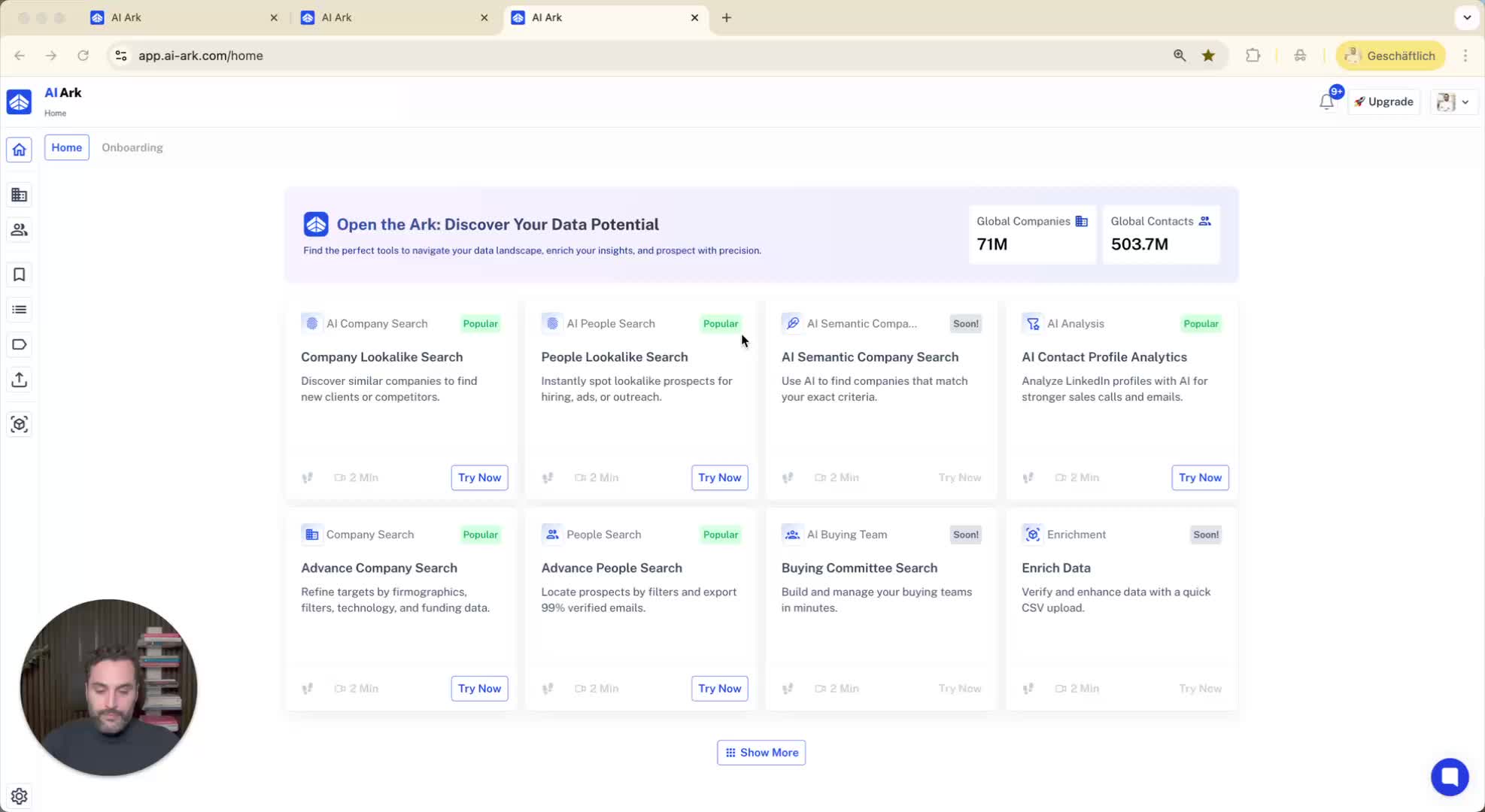
Start by performing a search (people or company).
Choose filters such as job role, employee size, and location.
After getting results, click on 'Save Search'.
Name your search (e.g., 'Search One Example').
Choose visibility: private or shared with account users.
Click 'Save'.
Access saved searches from the left side menu.
2. Creating and Saving a List 0:57
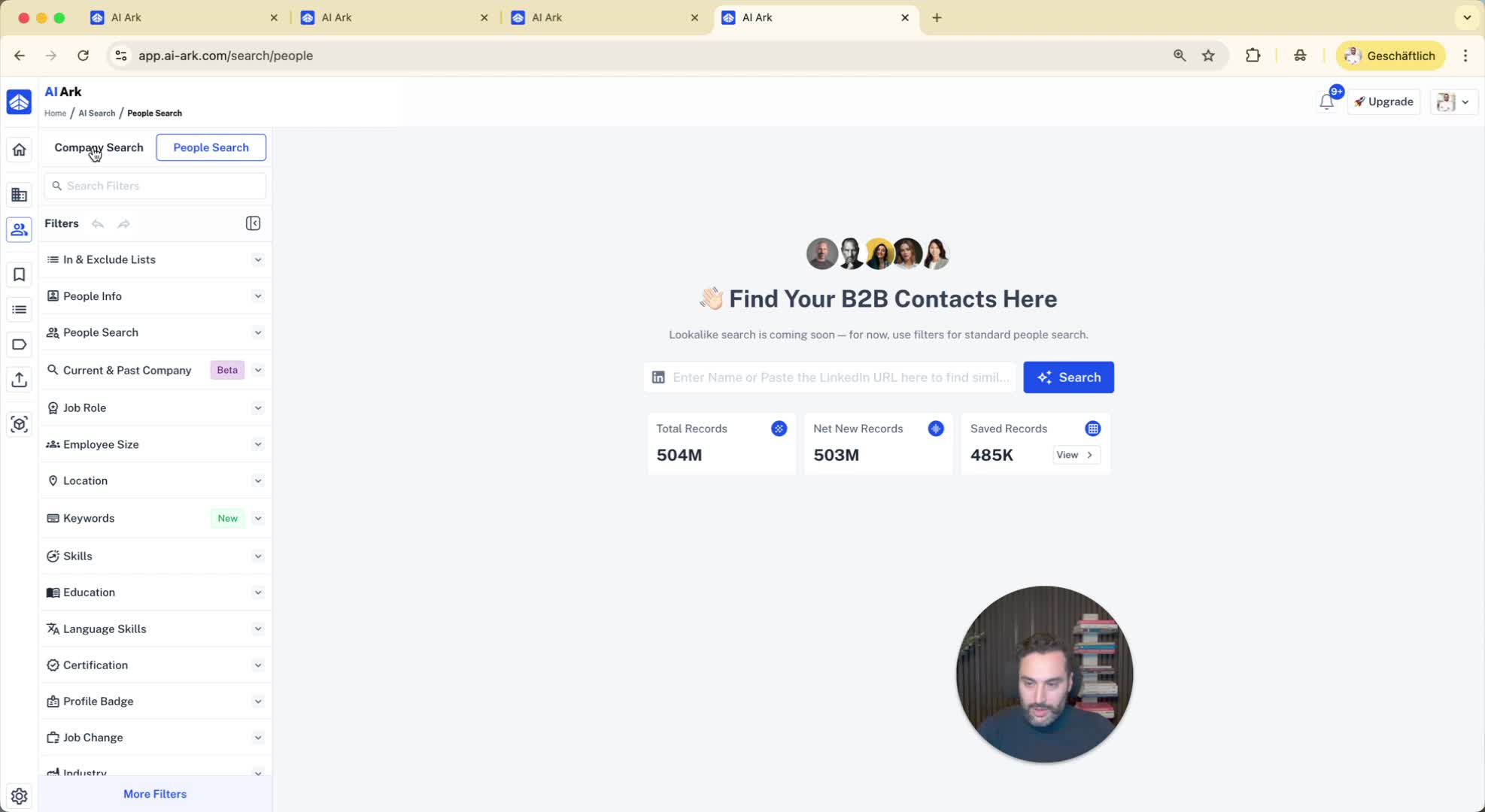
Perform another search to find people you want to save.
Decide how many people to save (e.g., 25).
Choose to add them to an existing list or create a new one.
If creating a new list, name it (e.g., 'List One Example Gen').
Click 'Save' to add the selected people to the list.
3. Accessing and Managing Lists 1:52
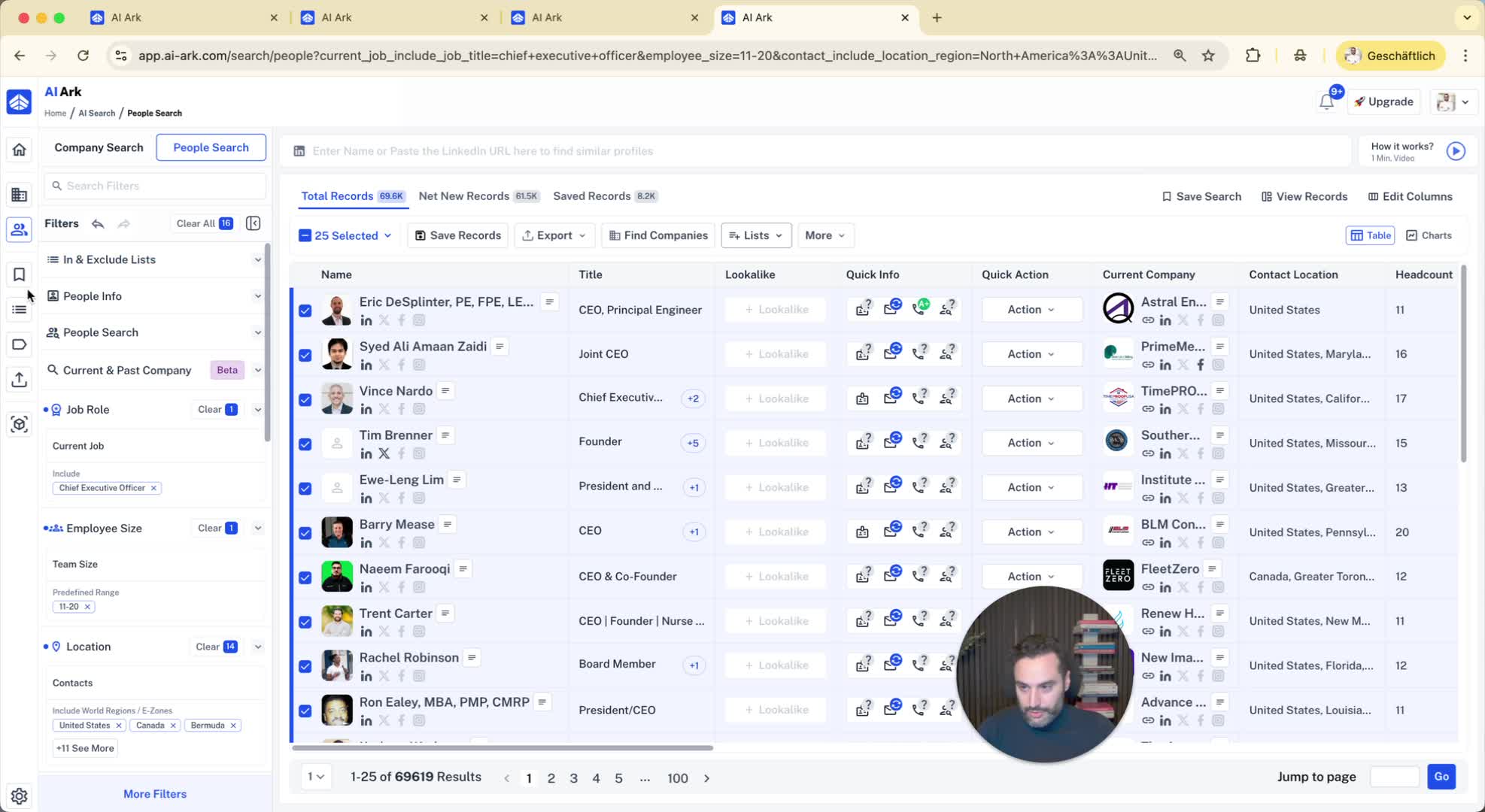
Click on the list from the left side menu to view saved results.
You can see only the people in that specific list.
4. Using Include and Exclude Lists 2:09
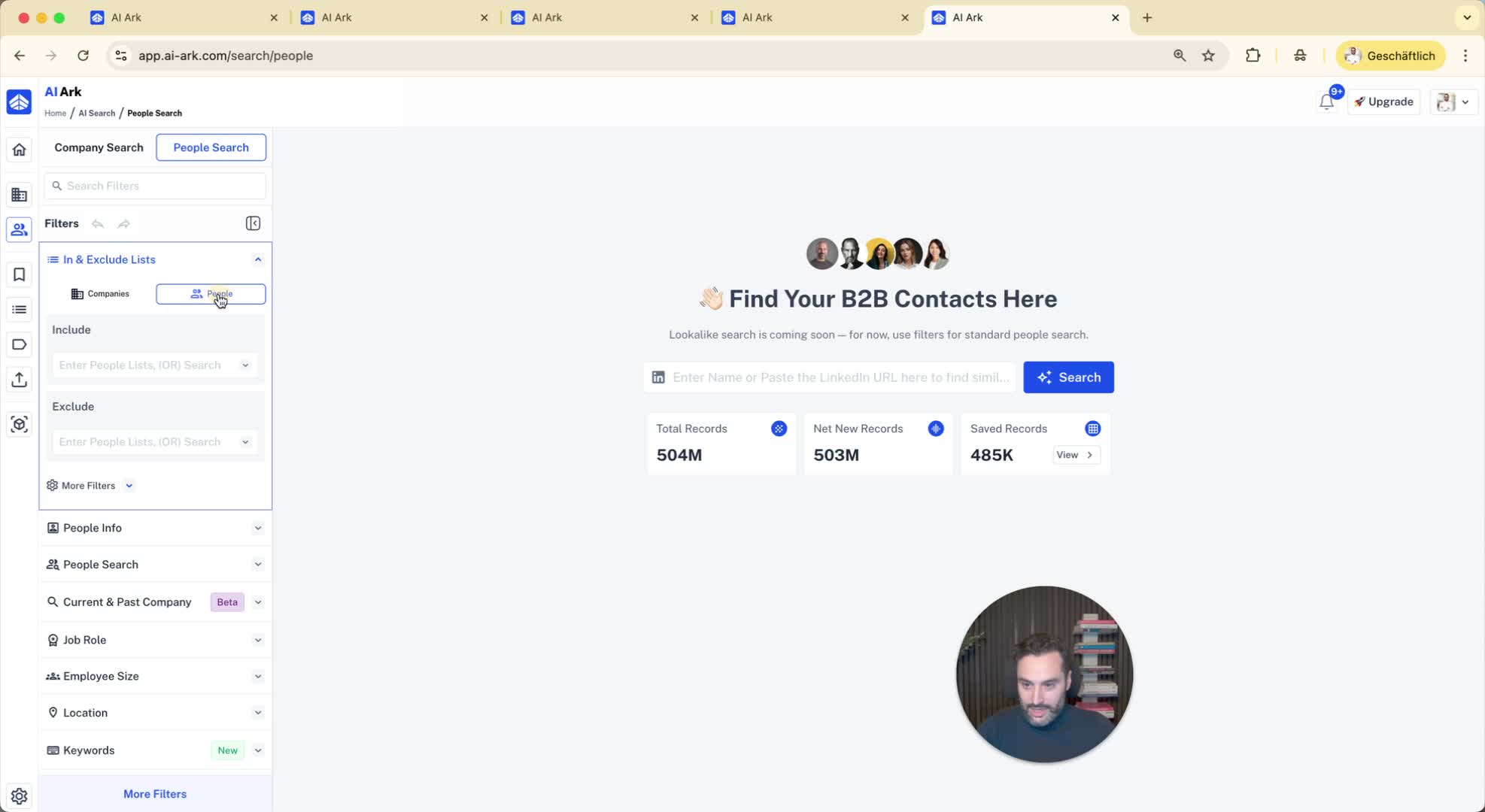
When performing a people search, you can include or exclude lists.
To include, select the list you want to add.
To exclude, select the list of people you want to remove from search results.
This is useful for managing blacklists (e.g., 5,000 people or companies to avoid targeting).