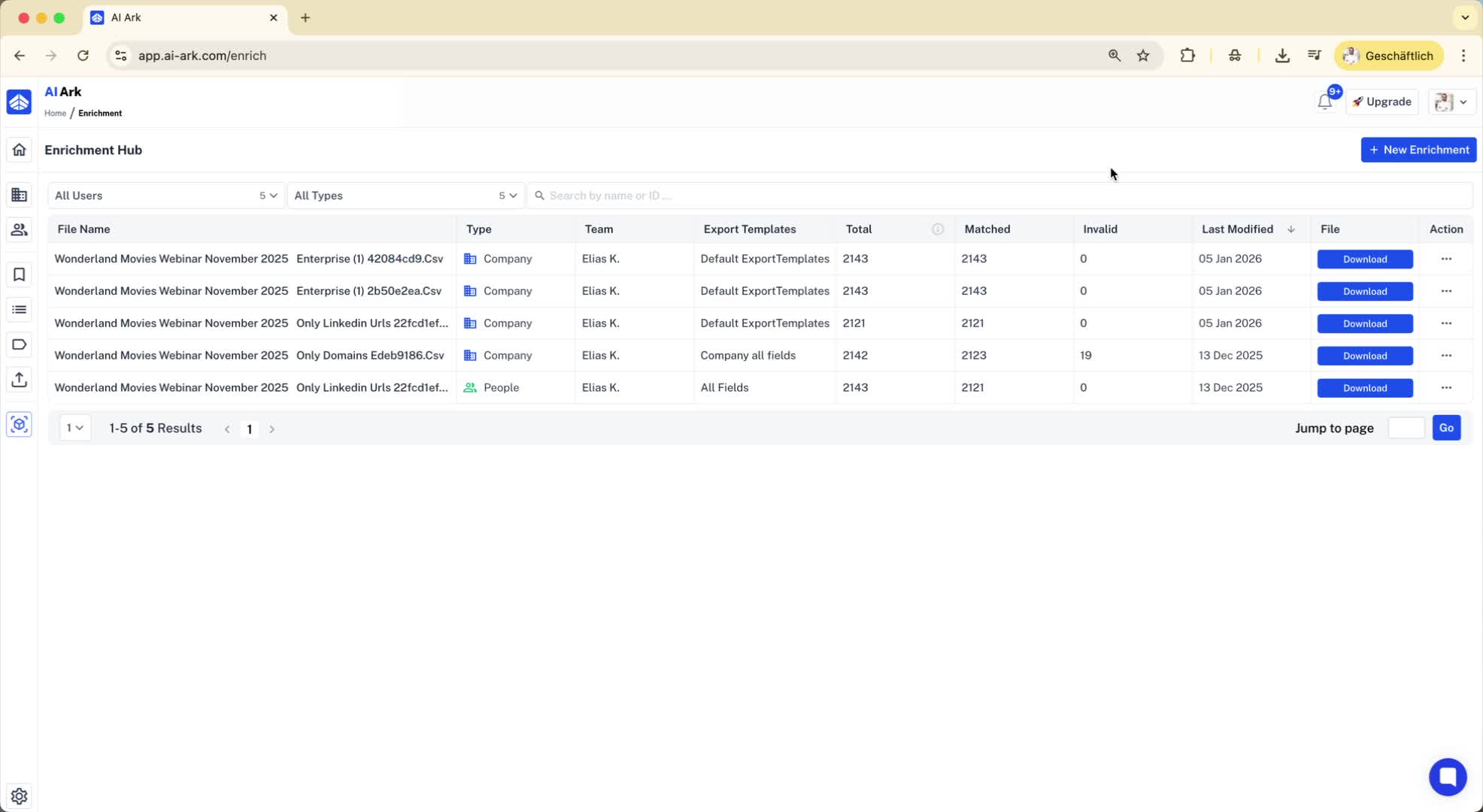
1. Access the Enrichment Hub 0:00
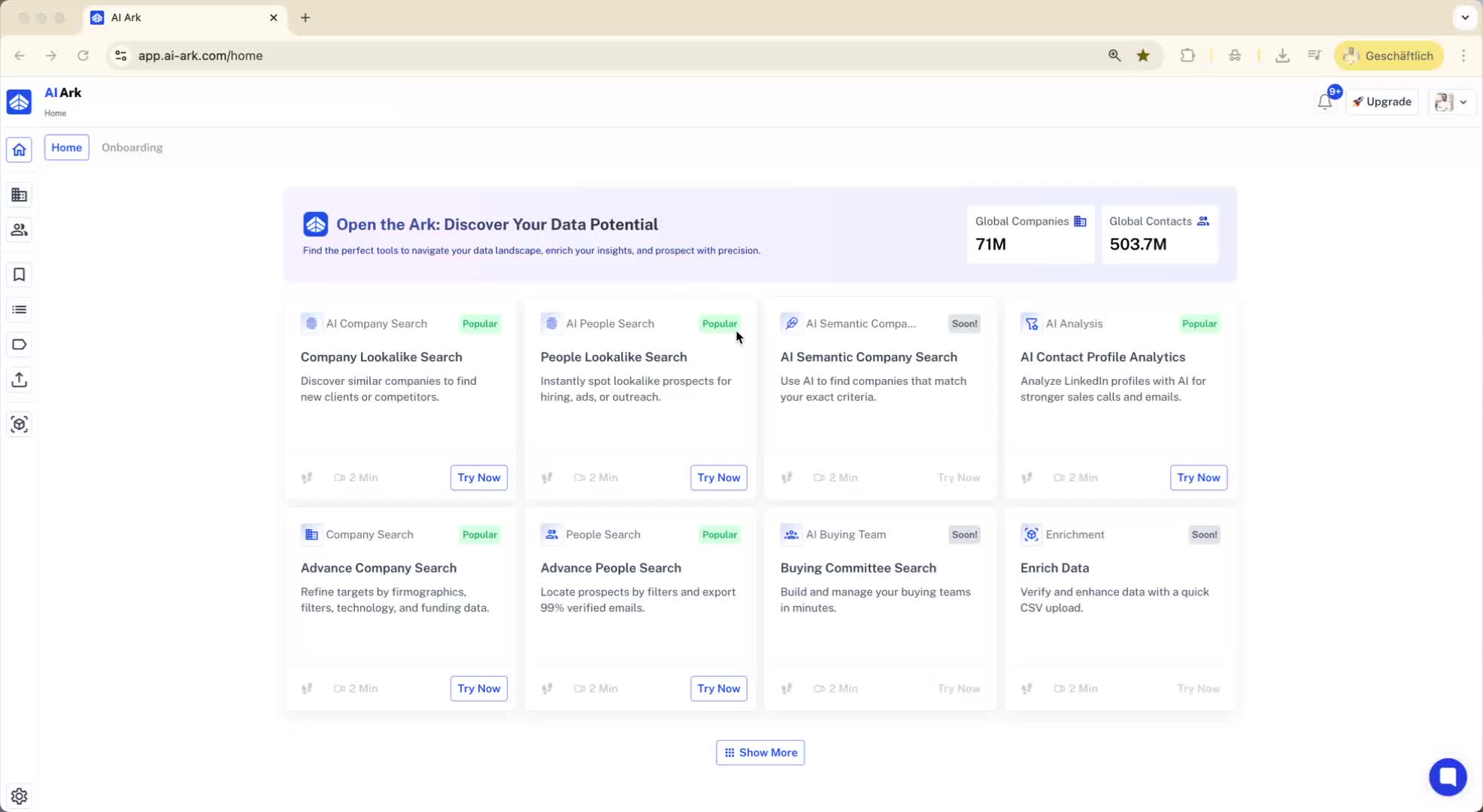
Navigate to the enrichment hub on the left side of the interface.
Click on 'New Enrichment' to start the process.
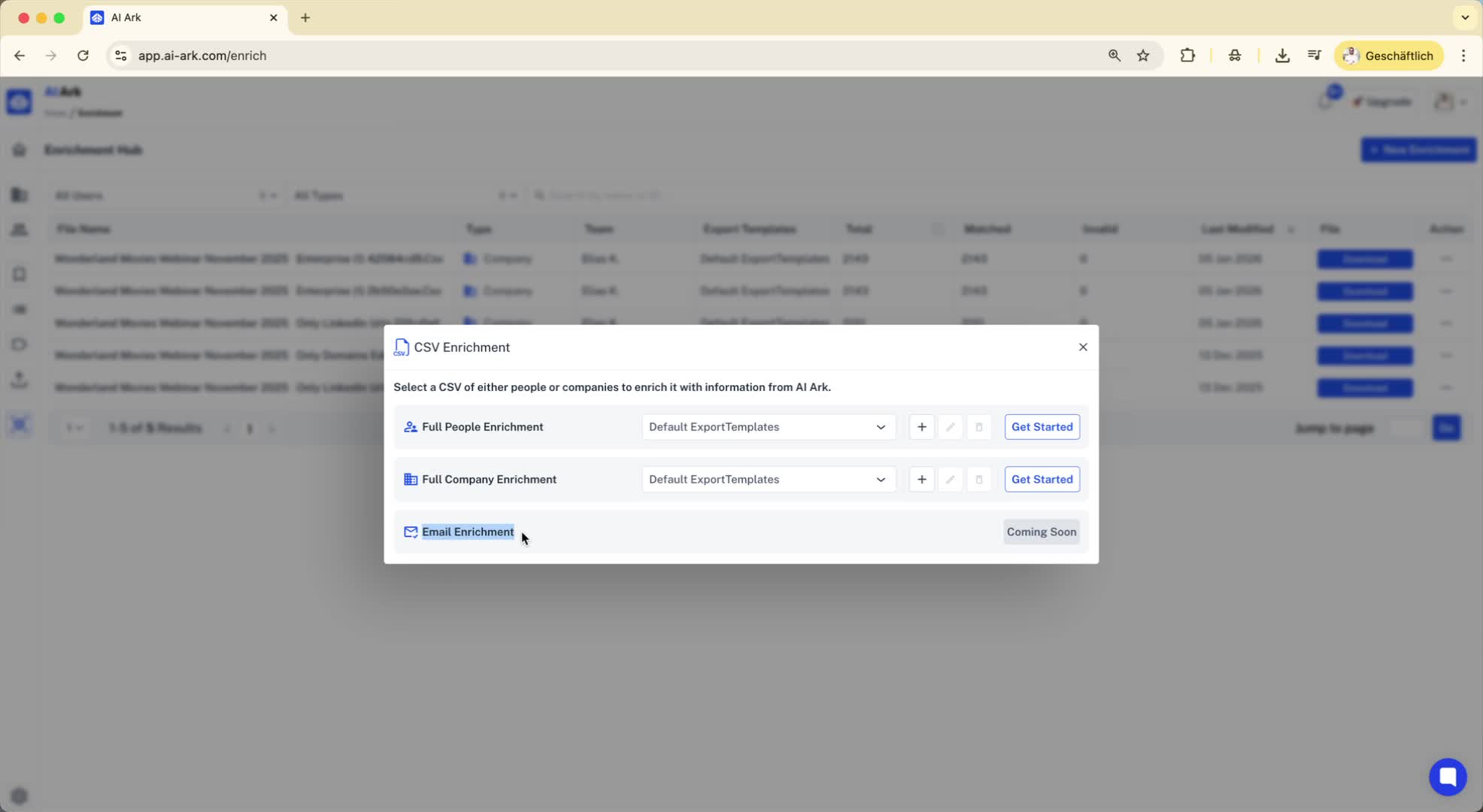
2. Choose Enrichment Type 0:17
Select the type of data you want to enrich:
People data
Company data
Upcoming: Email addresses.
3. Enrich People Data 0:25
Upload a CSV file containing LinkedIn URLs.
Select the columns you want to enrich from the available 256 options.
4. Upload CSV File 0:39
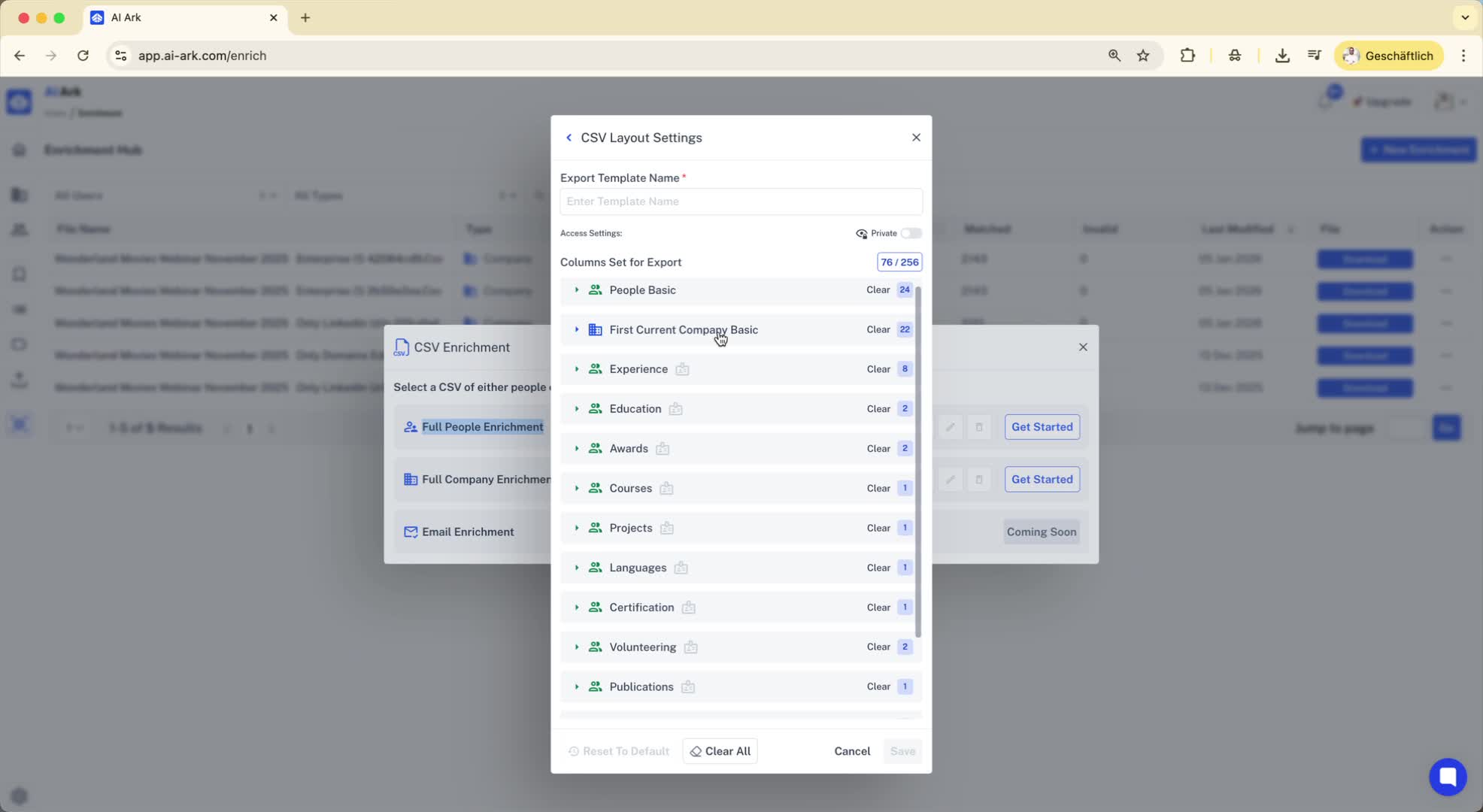
After selecting the desired columns, give your enrichment a name.
Click 'Get Started' and upload your CSV file.
5. Match LinkedIn URLs 1:11
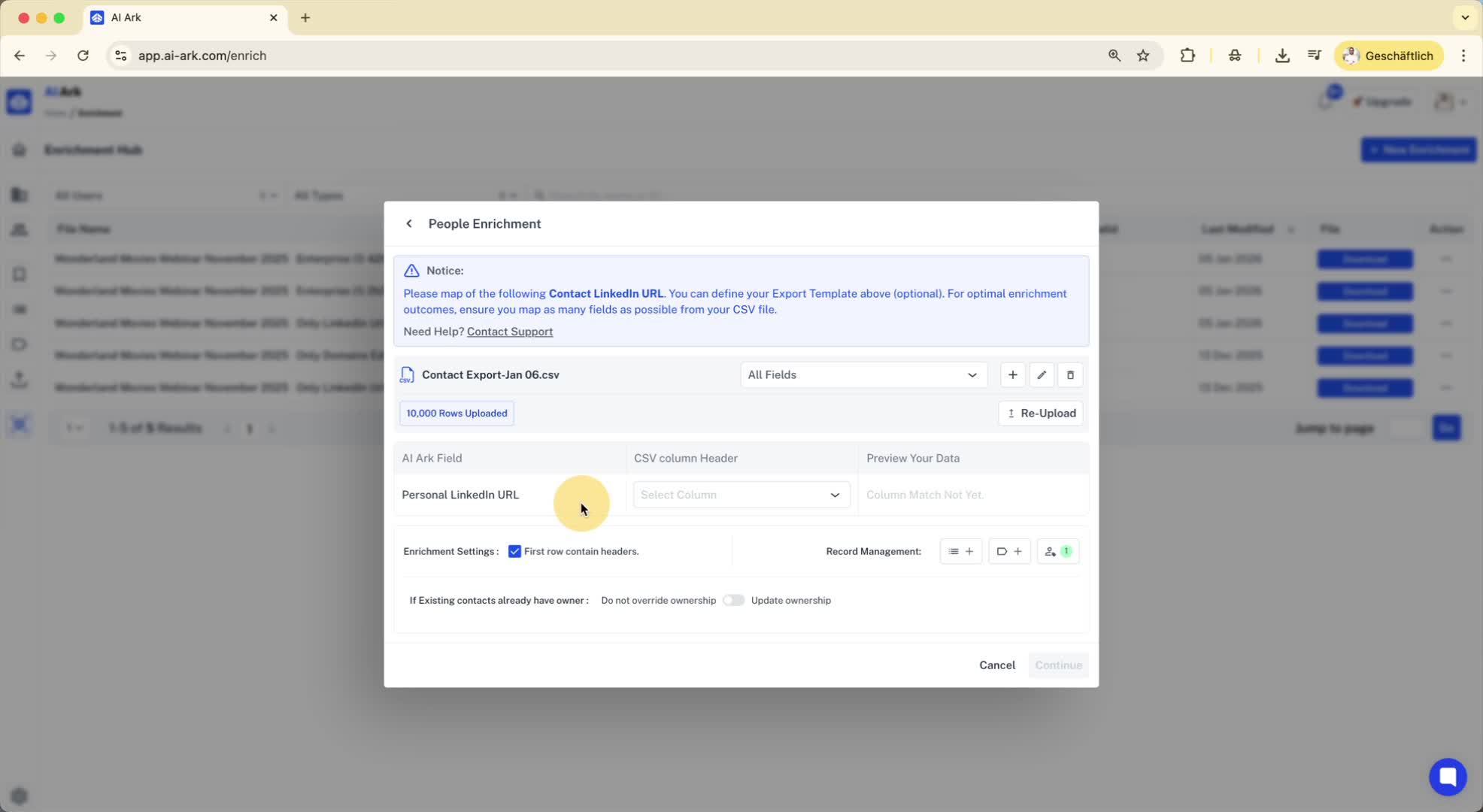
Ensure that the LinkedIn URLs in your CSV match the required format.
Preview the data before continuing.
6. Review Enriched Data 1:31
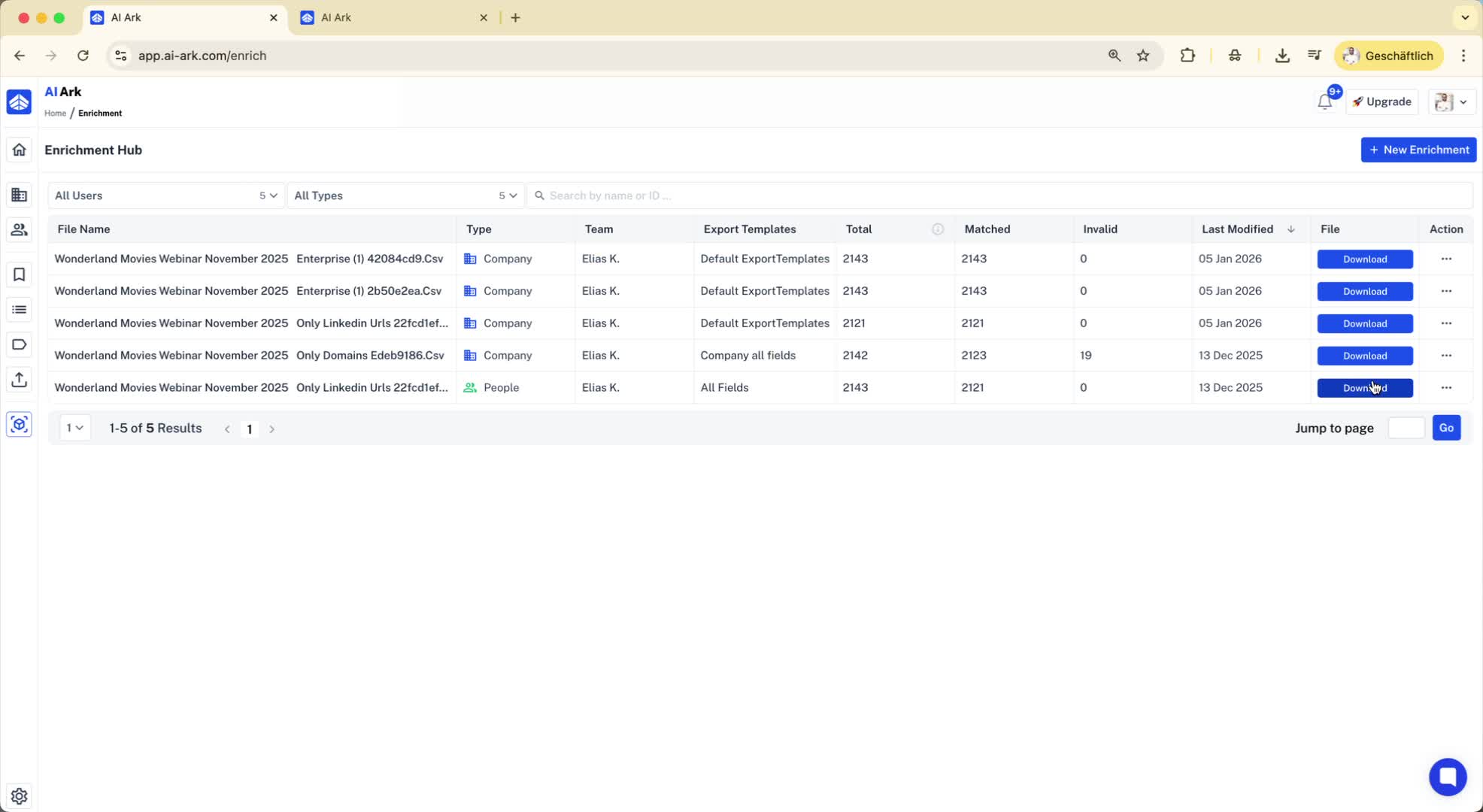
After processing, review the enriched data.
Download the enriched list as a CSV file.
7. Enrich Company Data 1:45
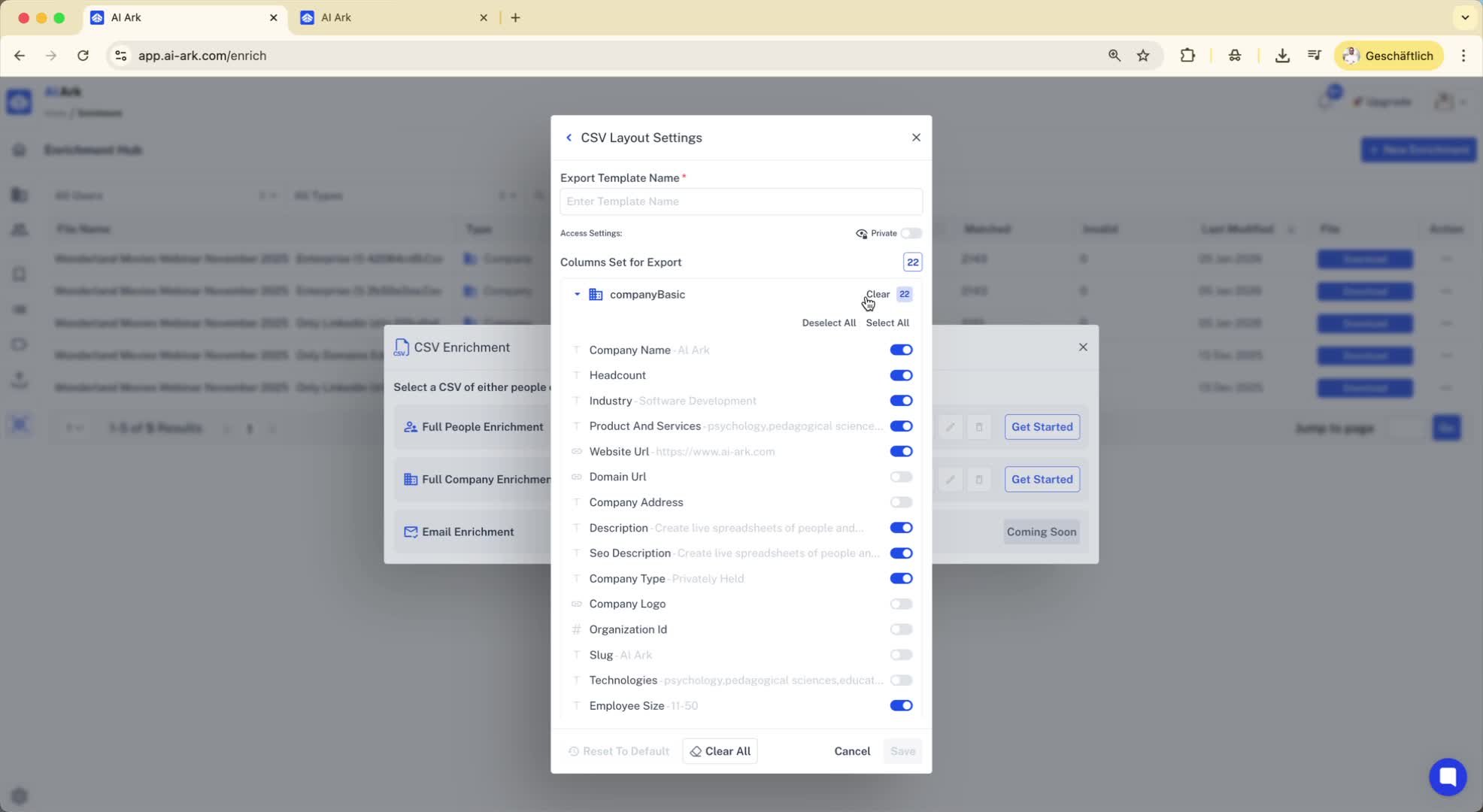
Click on 'New Enrichment' for company data.
Choose a template for the columns you want to include in the final list.
8. Select Company Identification Method 2:02
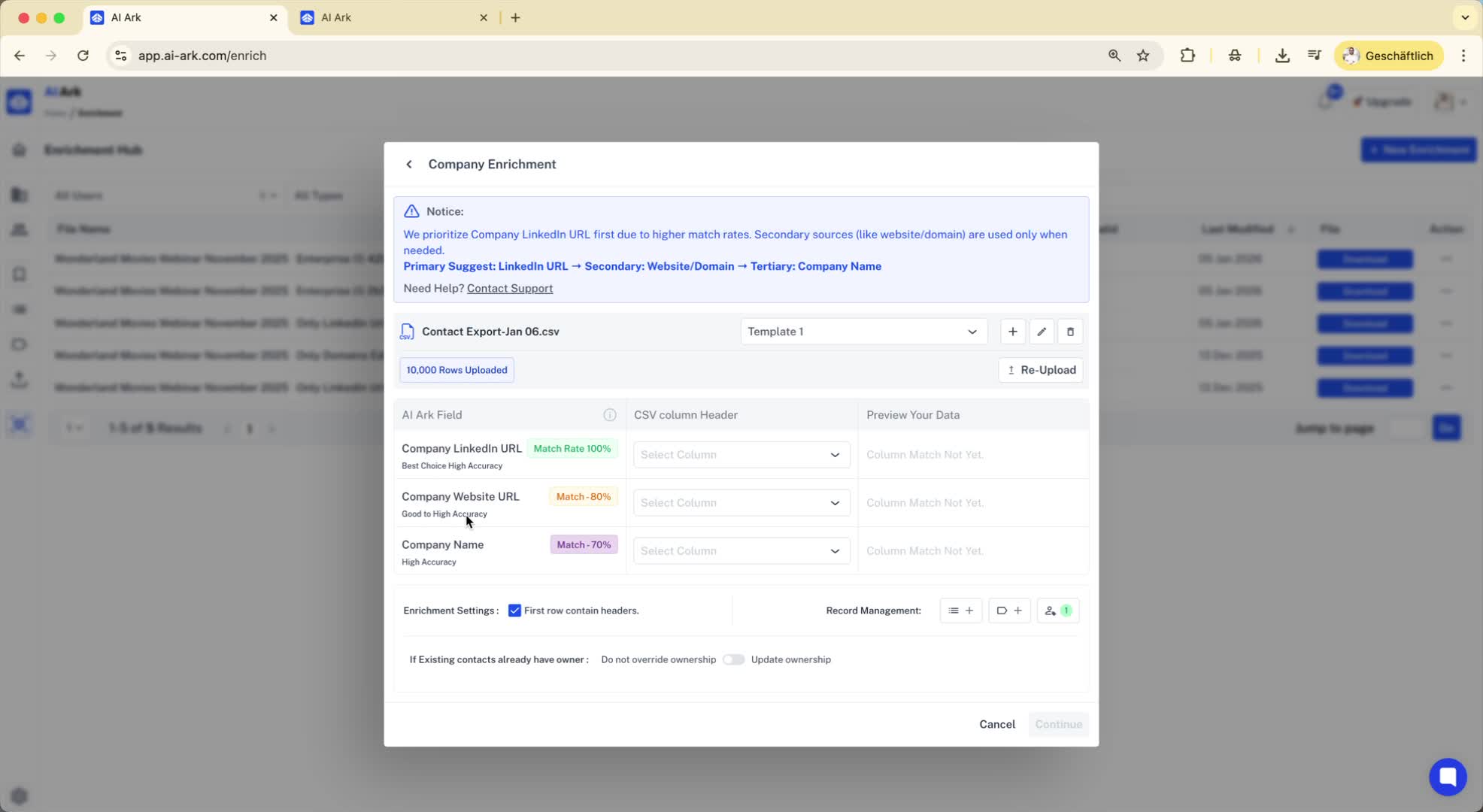
Choose how to enrich companies:
Company LinkedIn URL (recommended for unique identification)
Company domain (may return multiple branches)
Company name.
9. Process Company Enrichment 2:40
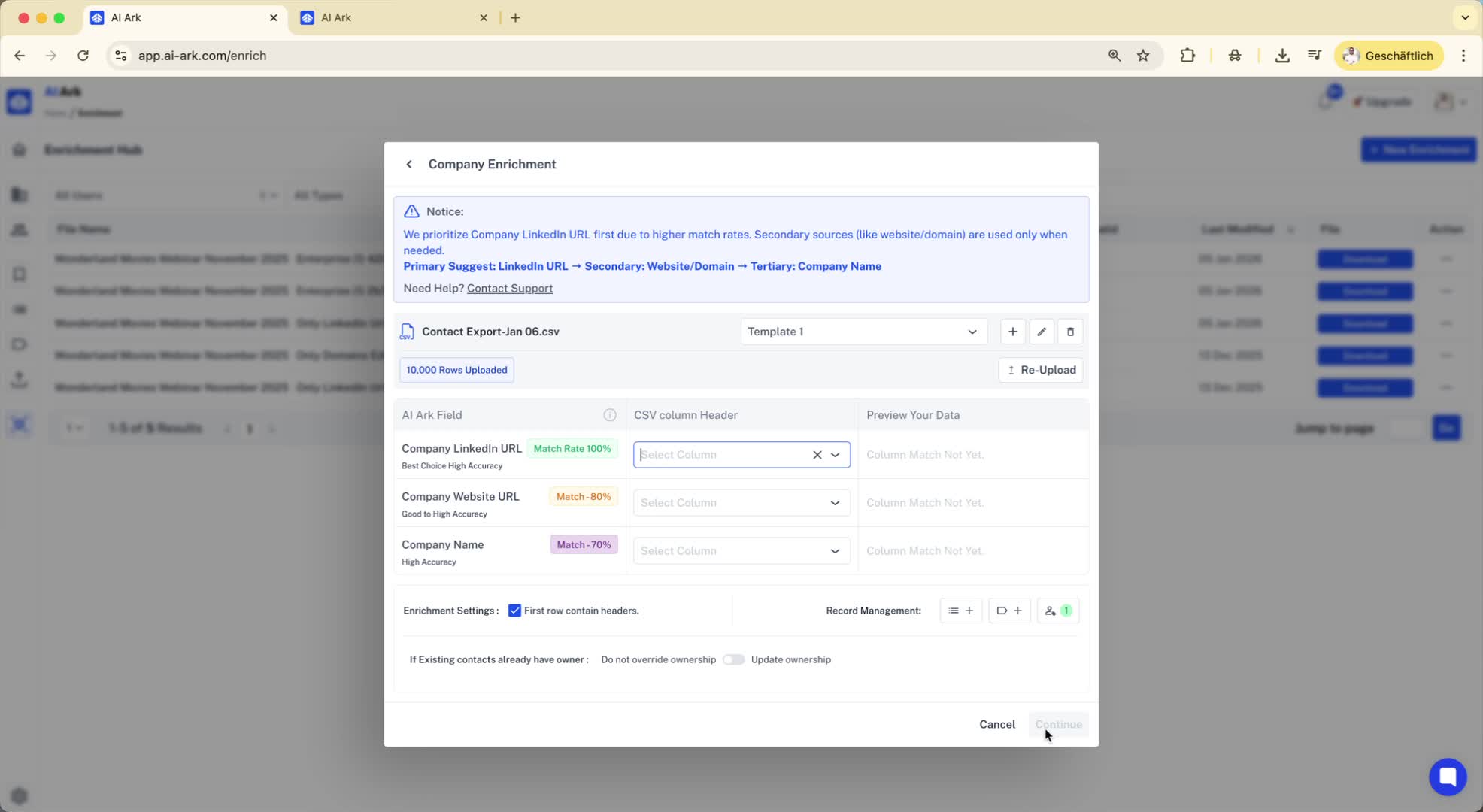
Click 'Continue' after selecting the identification method.
Review the enriched company data and download as needed.
10. Create a Blacklist 3:08
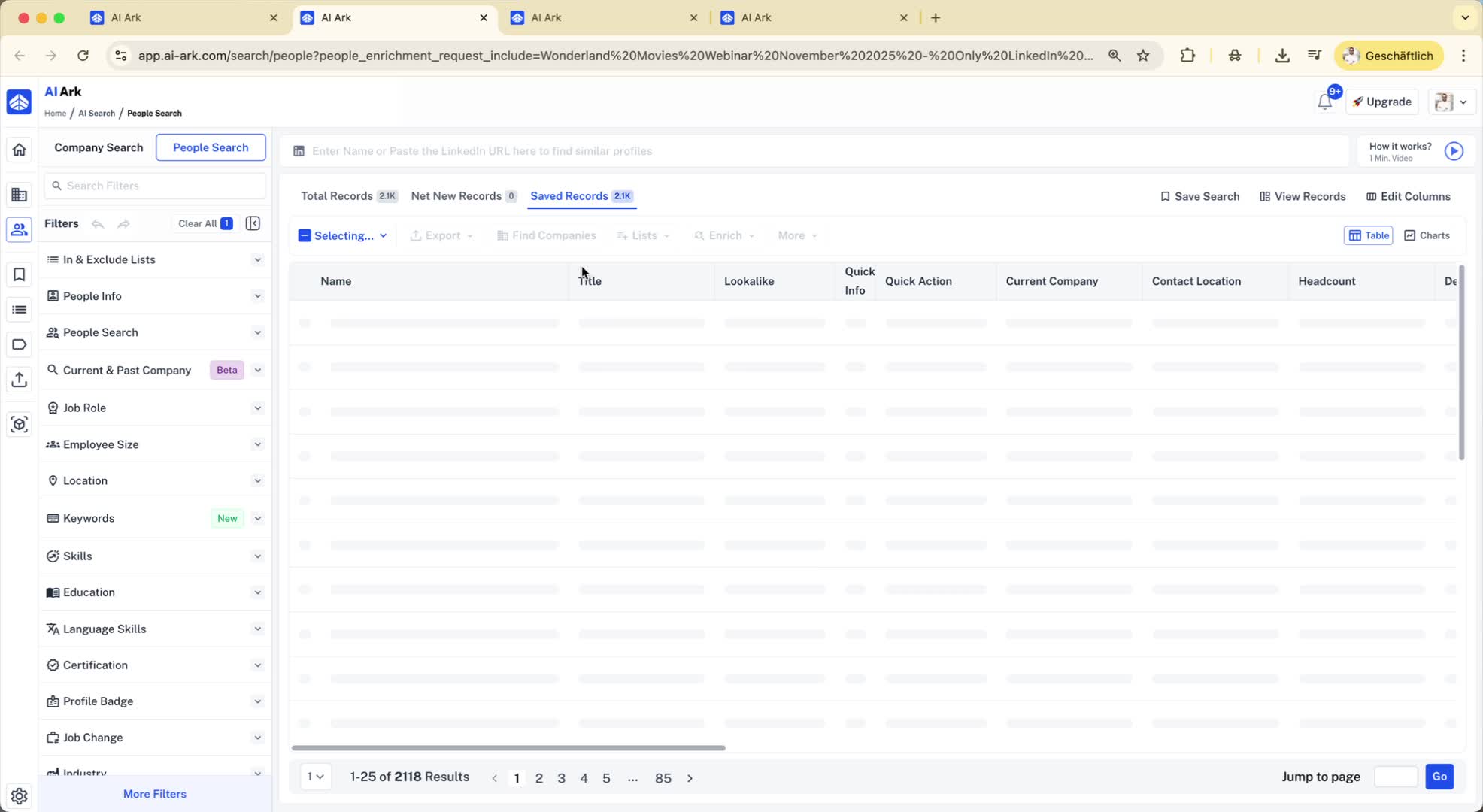
Select the enriched people data you want to blacklist.
Create a new list (e.g., 'Blacklist Jan 26').
11. Exclude Blacklist in Future Searches 3:29
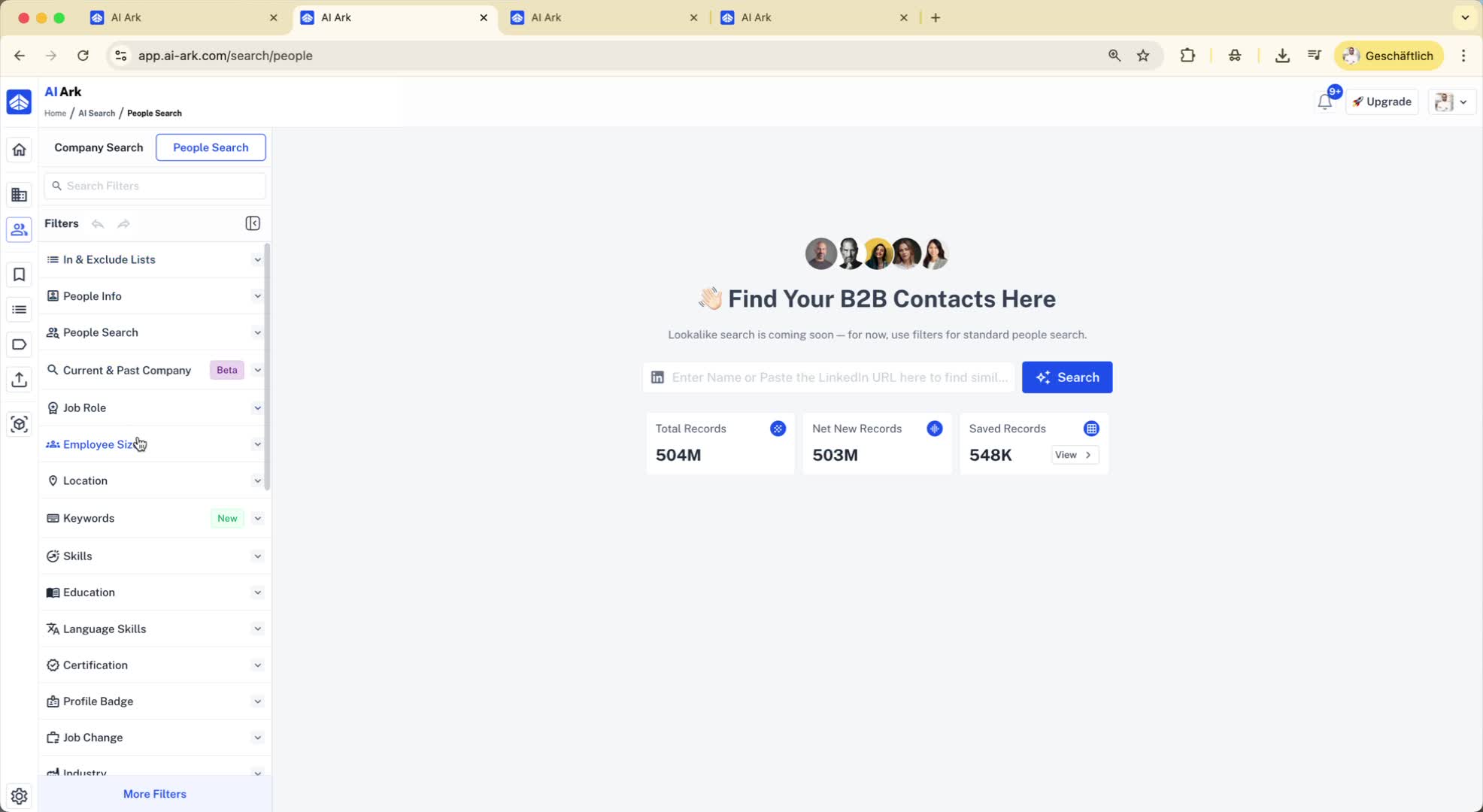
When searching for people, specify a location (e.g., Germany).
Use the exclude option to remove entries from your blacklist.
12. Verify Exclusion Results 3:46
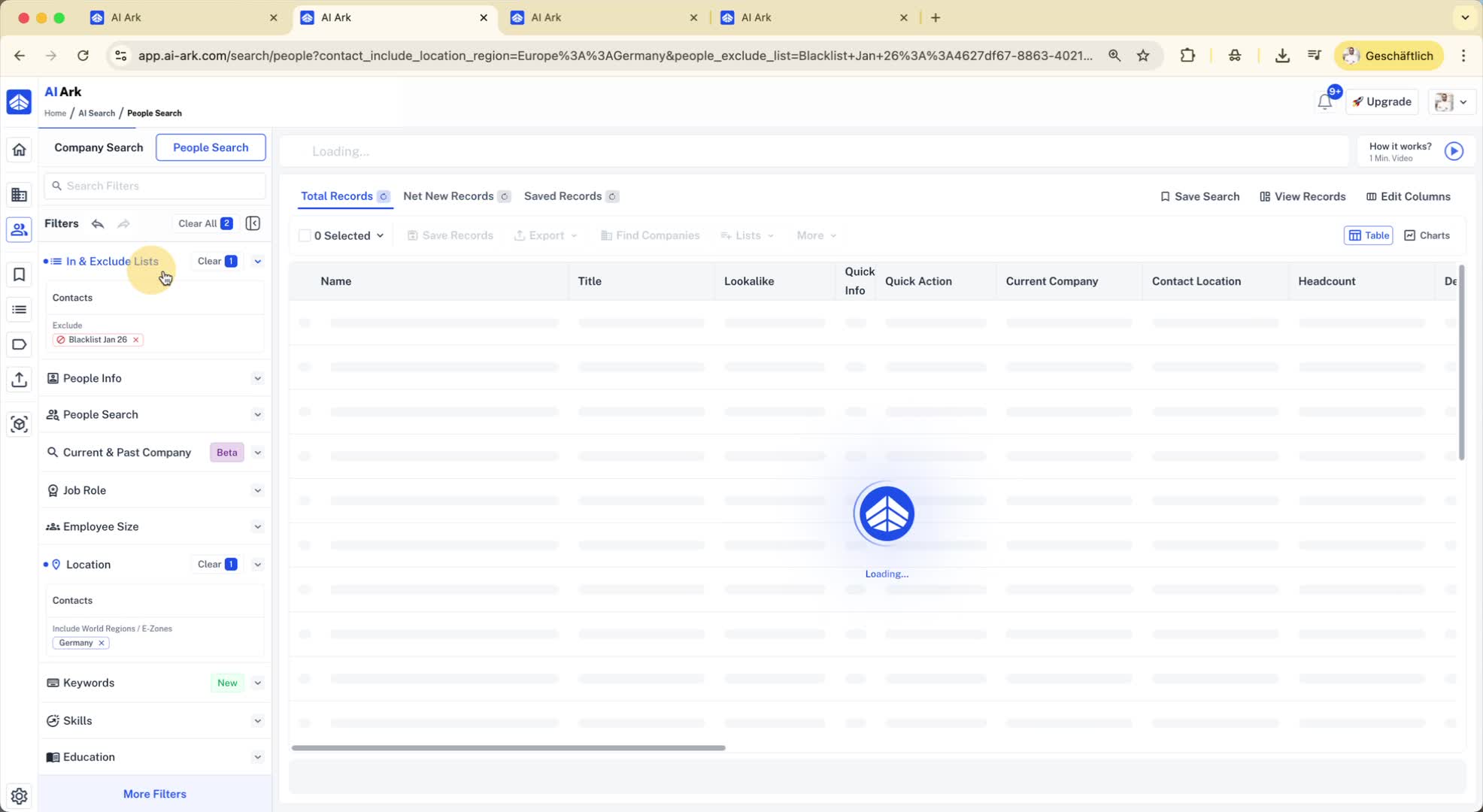
Check the updated search results to confirm the blacklist exclusion.