1. Start the Export Process 0:00
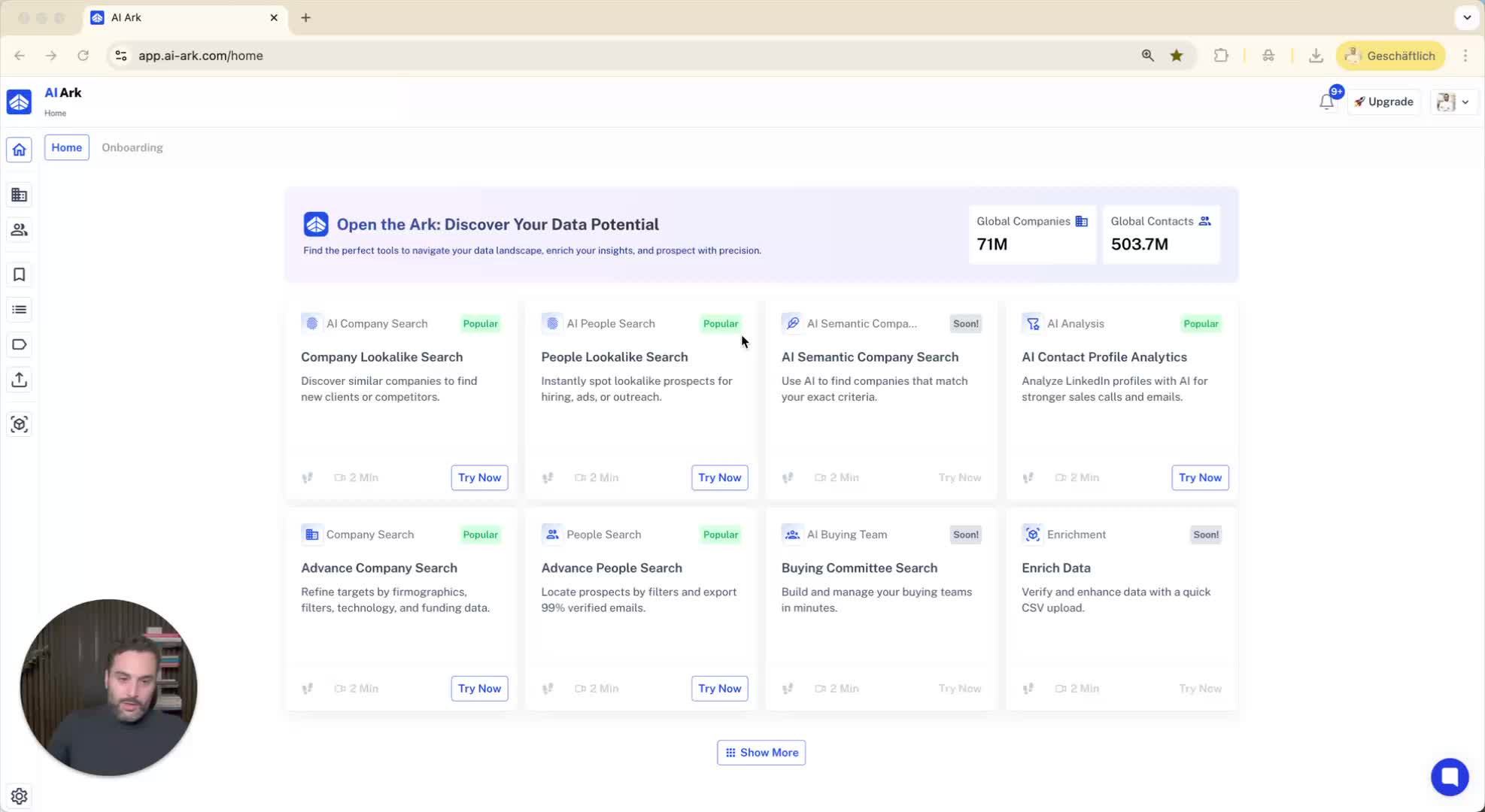
Begin by selecting the type of search you want to perform: Company Search or People Search.
For a Company Search:
Choose the desired location and employee size.
Select the companies you want to export.
2. Create an Export Template for Company Search 0:19
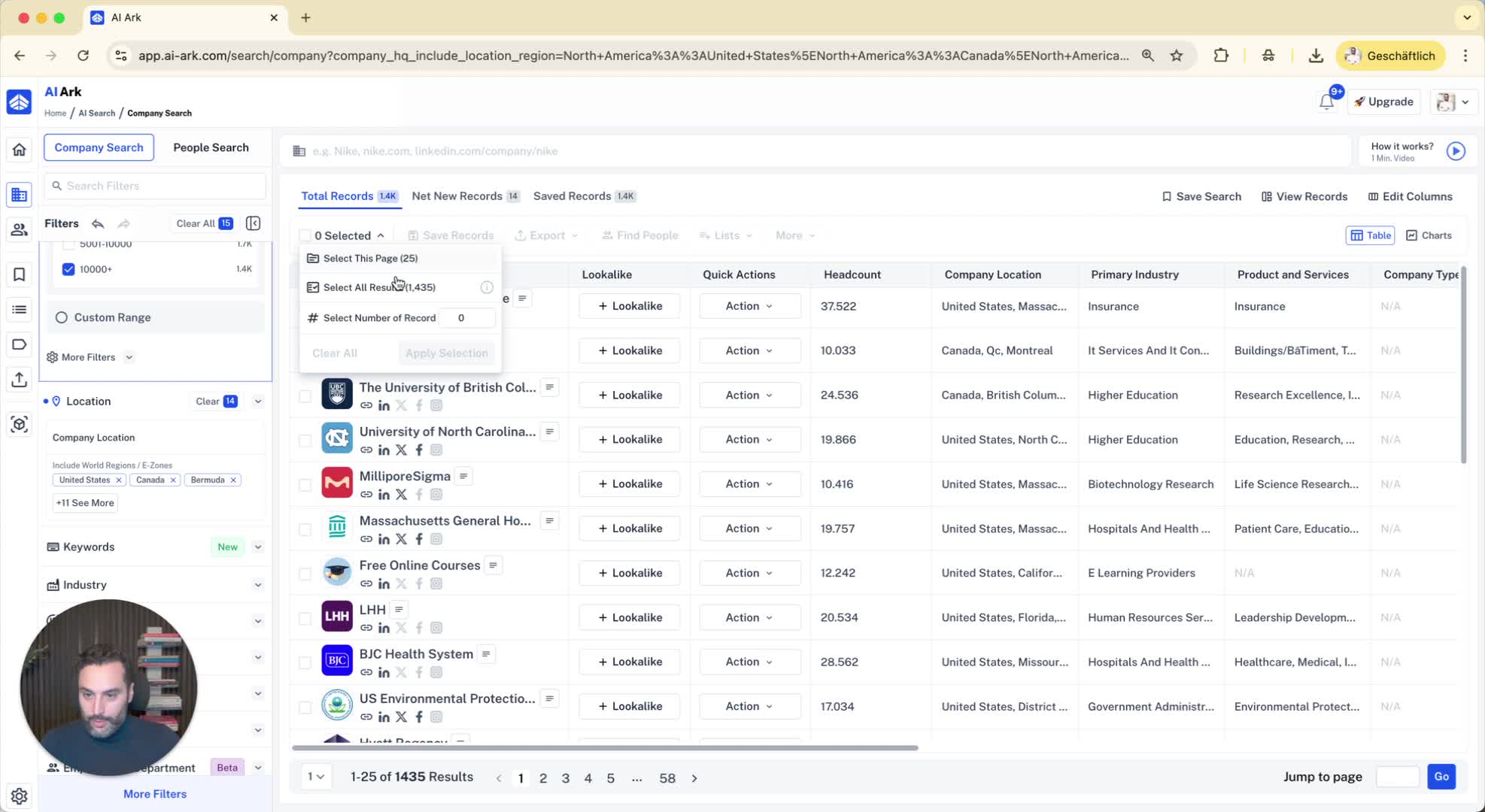
Click on the company you want to export.
Navigate to the CSV file option and select Create an Export Template.
In the export template:
Review the default selected columns.
Add additional columns as needed (e.g., company address, domain URL, technologies).
Name your template (e.g., Private Template One) and click Save.
3. Export the CSV File 1:03
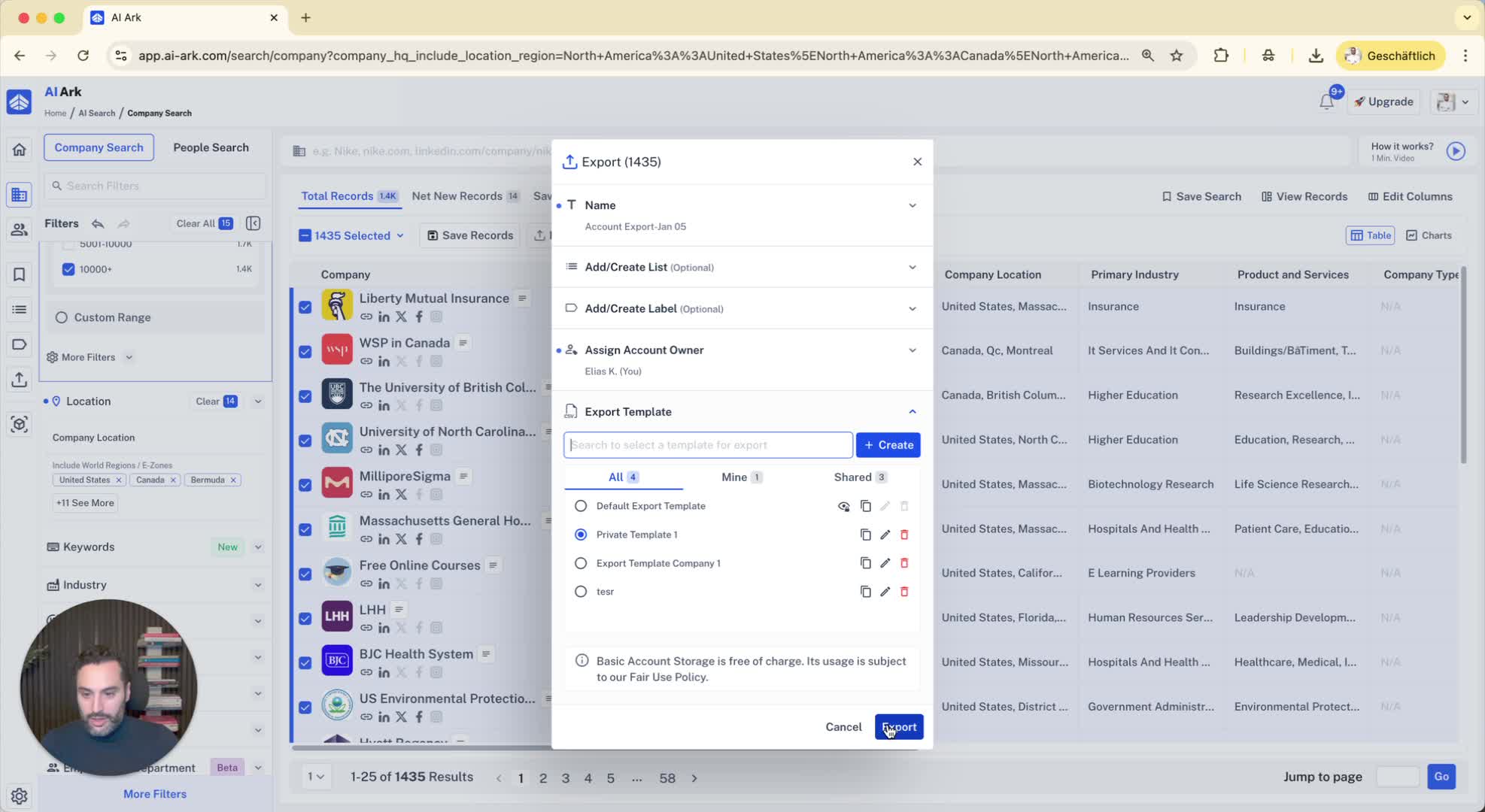
After saving your template, click on Export.
The exported CSV will include all the columns you selected in your template.
4. Create an Export Template for People Search 1:14
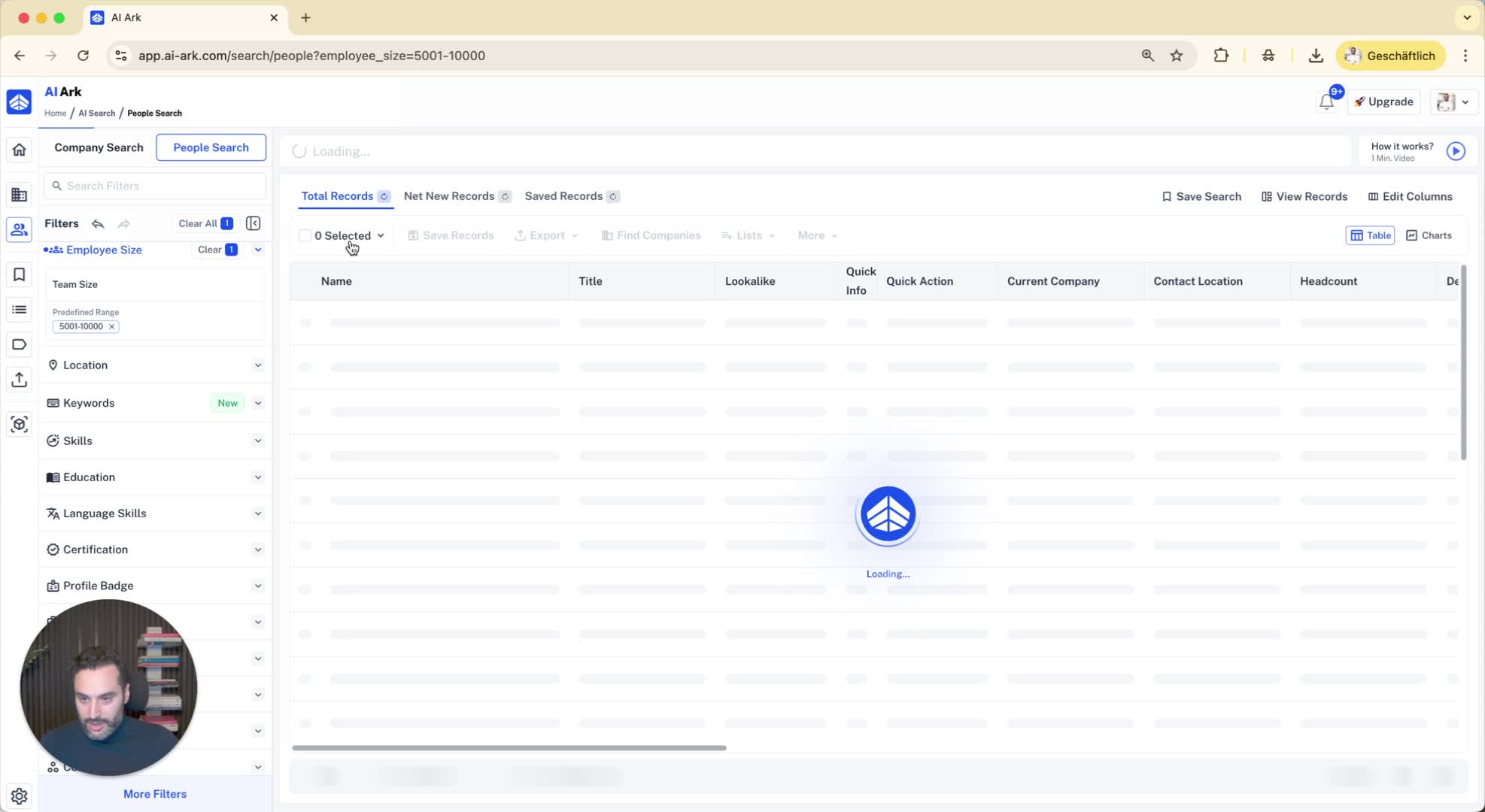
For a People Search:
Perform your search and select the records you want to export.
Click on Export again.
In the export template for people:
You have access to 256 columns to choose from (e.g., languages spoken, education details).
You can clear all selections or select all columns as needed.
5. Save the People Search Template 1:47
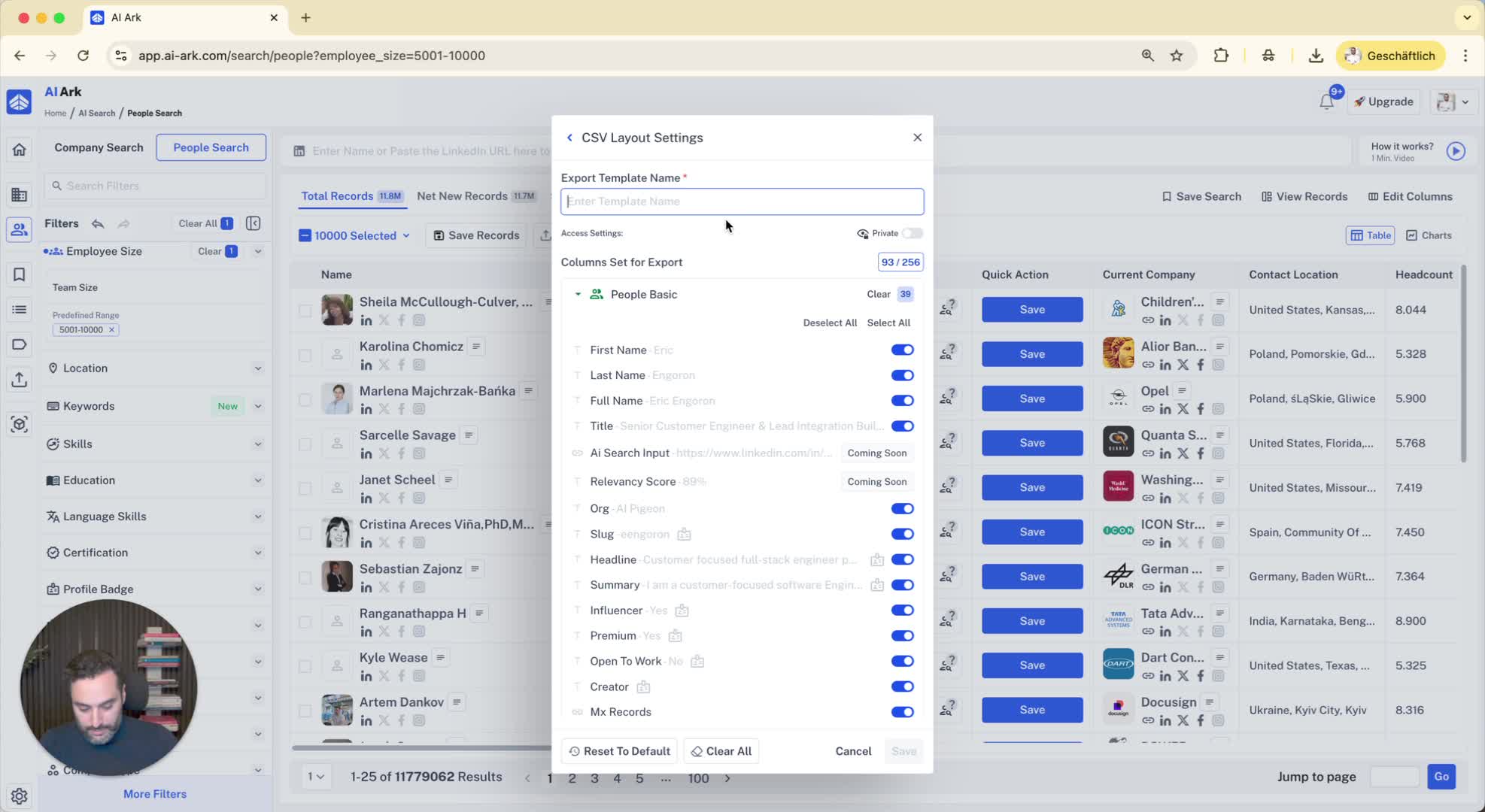
Name your new template (e.g., Private Template for Persona) and click Save.
6. Default Template Usage 2:07
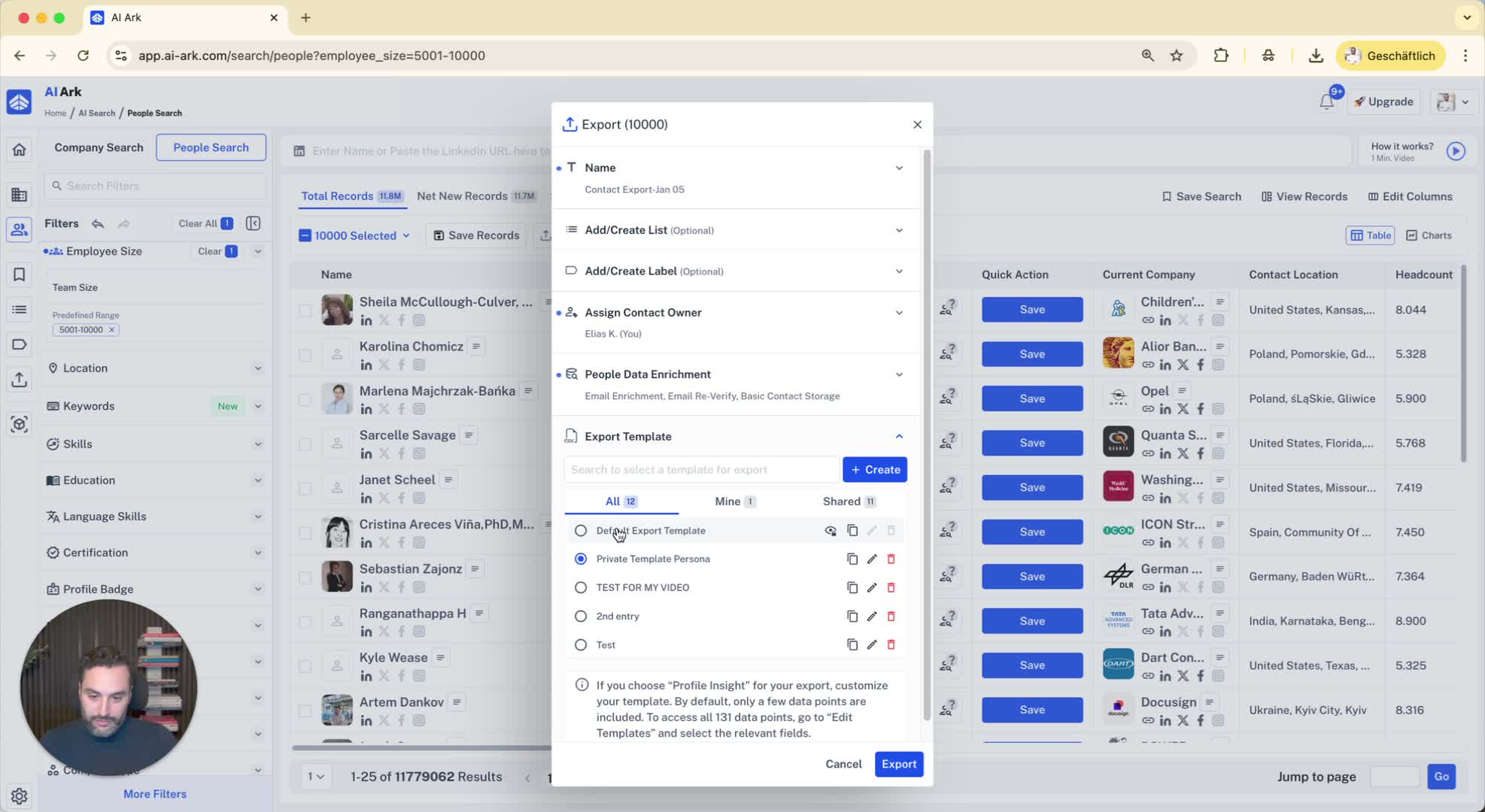
The last used template will be set as the default for future exports.
This means you won’t have to reselect your columns each time; the system will remember your last choice.