1. Accessing the API Management Dashboard 0:00
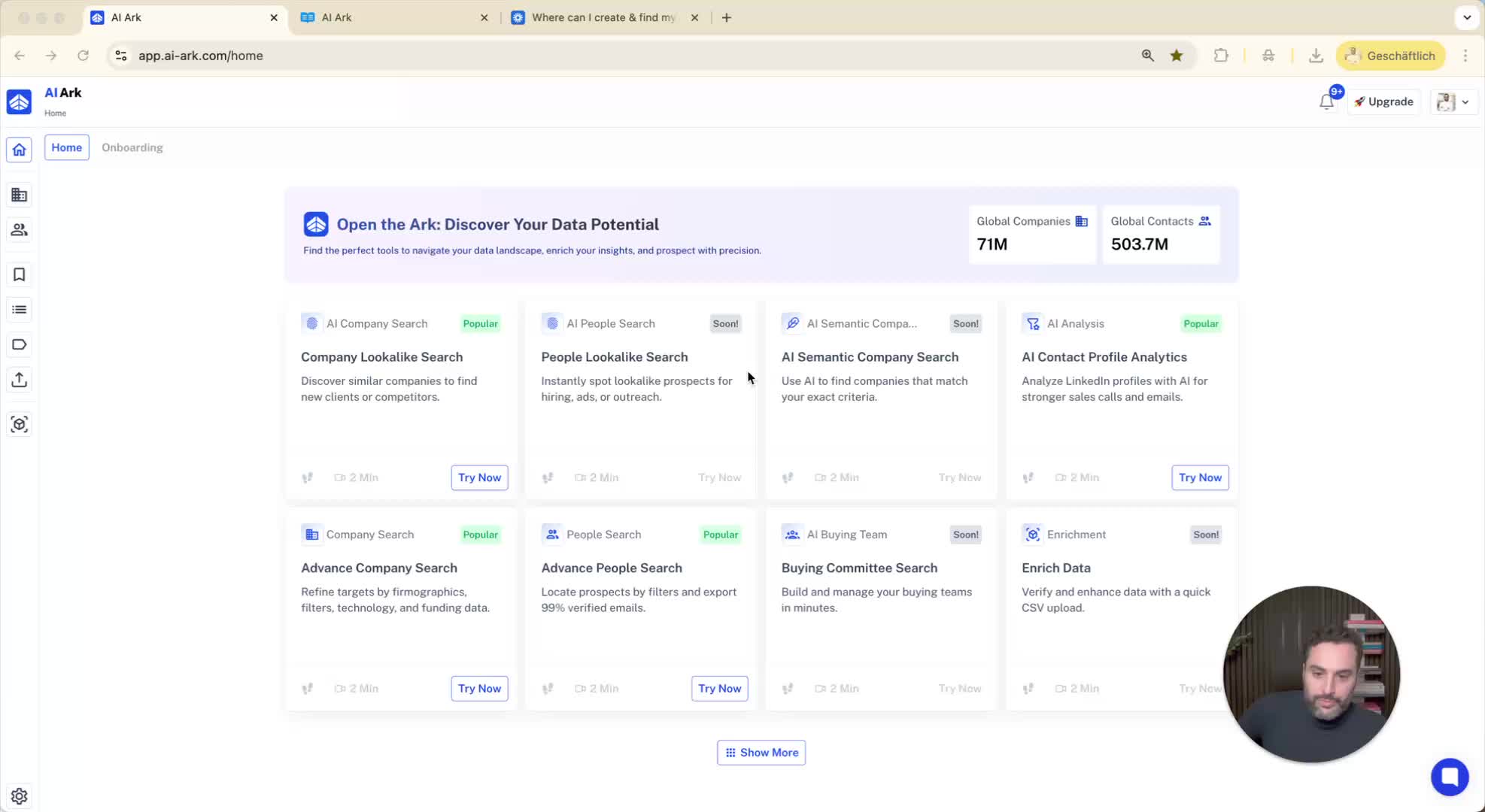
Click on the settings in the platform.
Navigate to the API Management Dashboard.
View API keys, balance, spending, and usage logs.
2. Exploring API Documentation 0:15
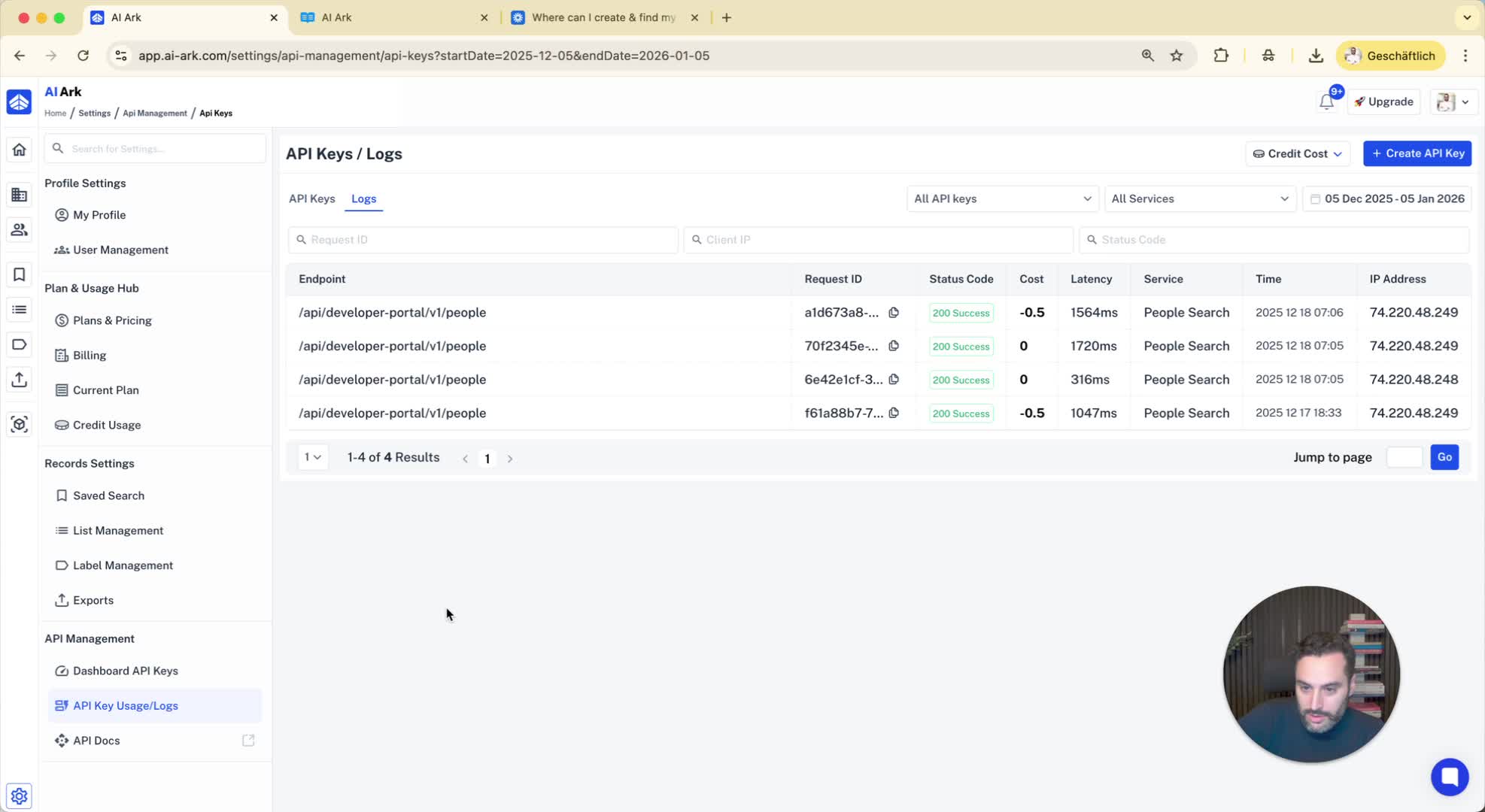
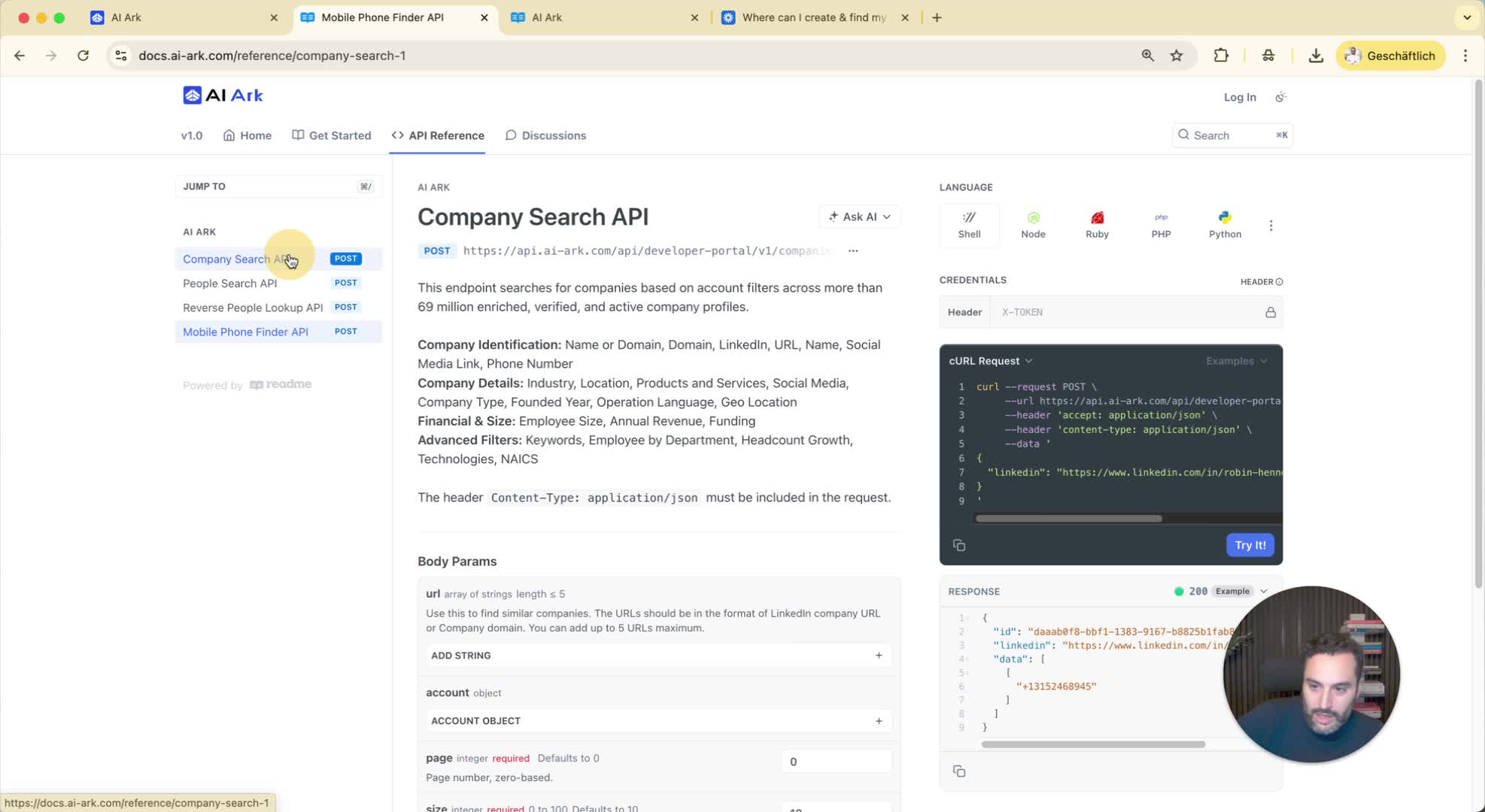
Click on the API docs section.
Access the API reference on the left side.
Available APIs include:
Company Search API
People Search API
Reverse People Lookup API
Mobile Finder API
Email Finder API (may be added later).
3. Using the People Search API 0:33
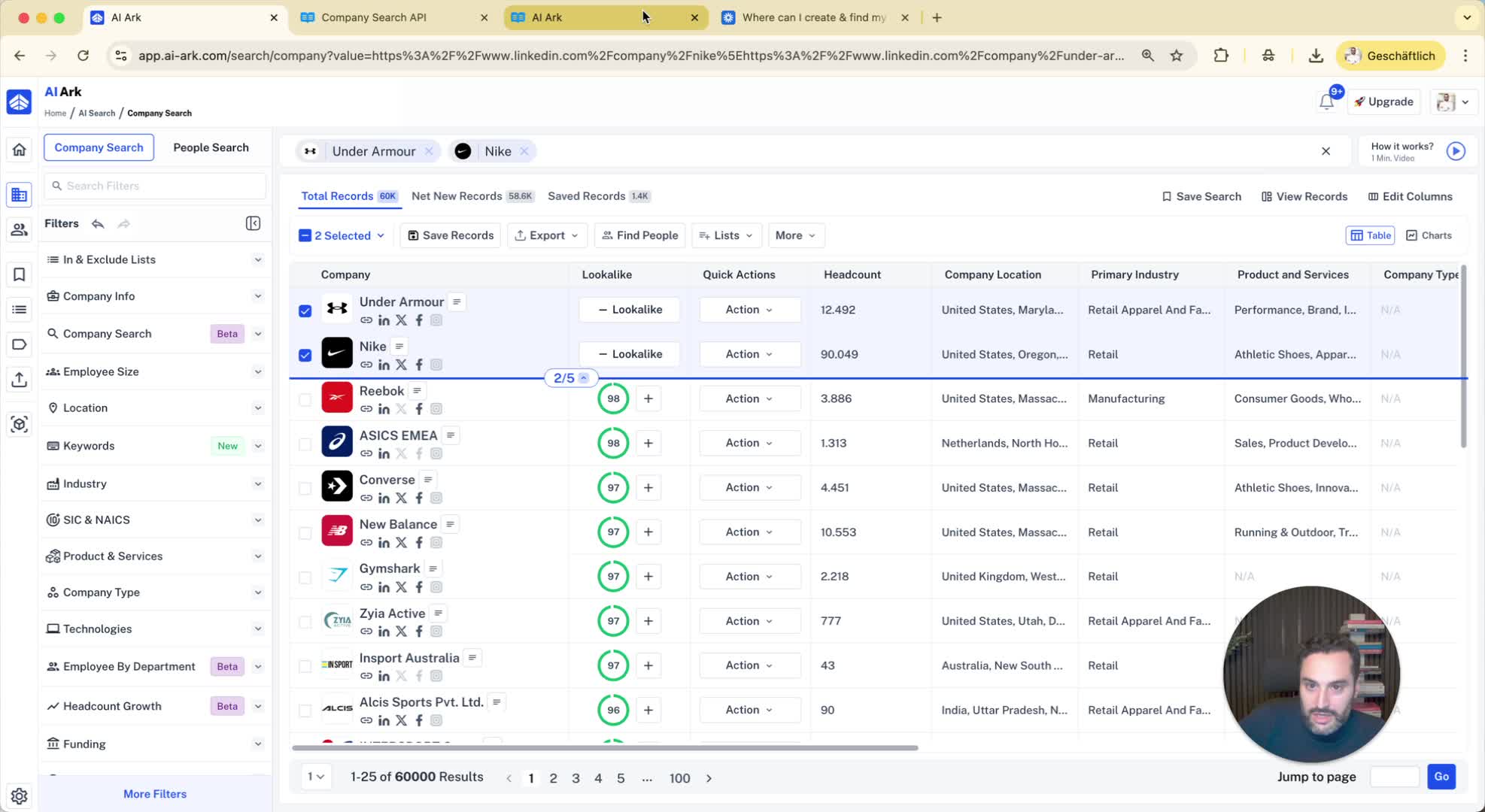
The People Search API allows you to find lookalike companies.
Example: Search for companies similar to Nike by entering 'nike.com'.
You can add up to five reference companies.
4. Adding Filters in the API 1:08
Add filters such as:
Industry
Location
Type
Founder year
Employee size
Revenue
All platform options are available in the API.
5. Constructing API Requests 2:18
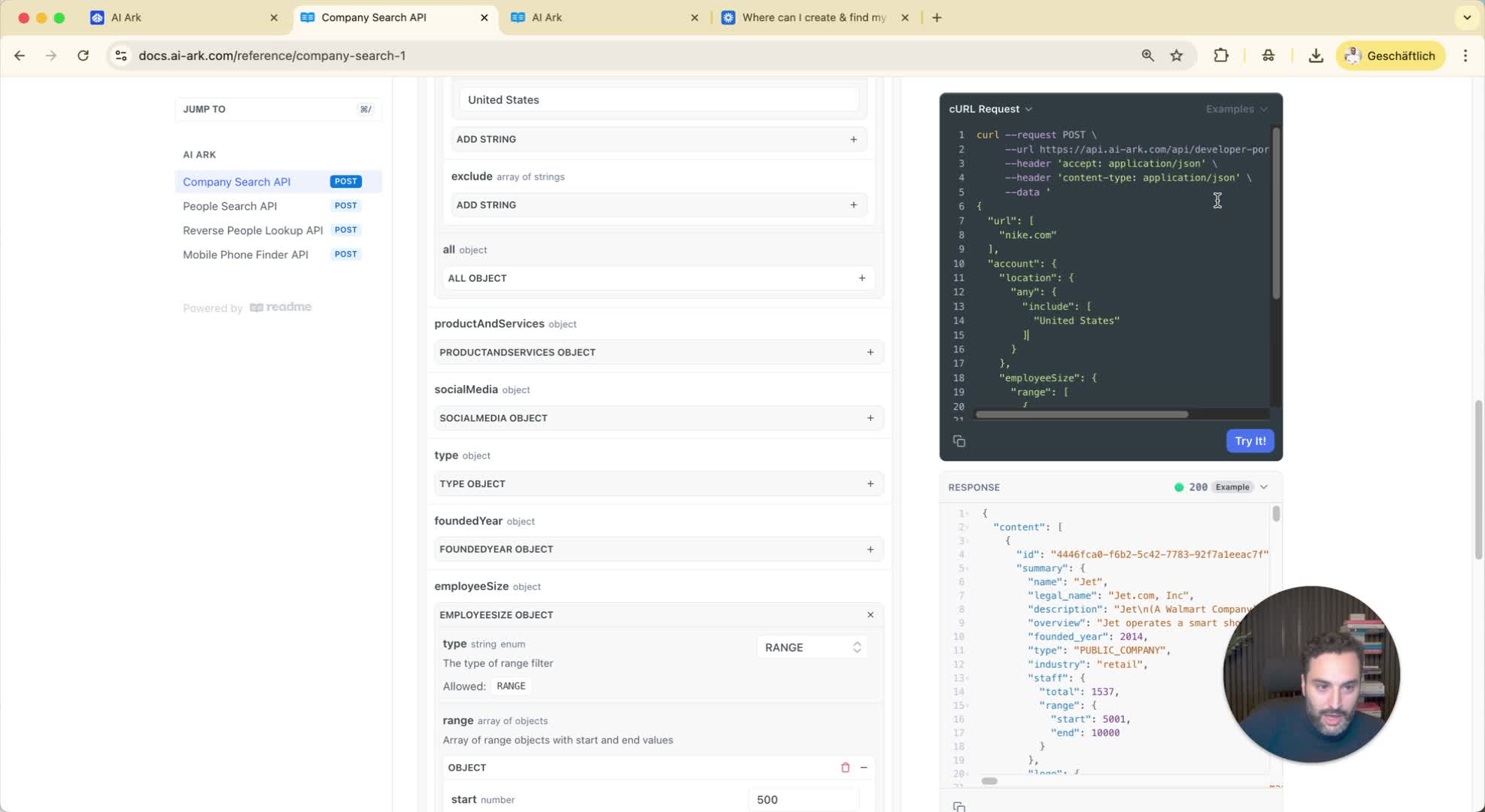
Copy the constructed API request details.
Include the X token API key in the header:
Format: X token: [Your API Key]
The body of the request can be modified as needed.
6. Performing Standard Searches 2:43
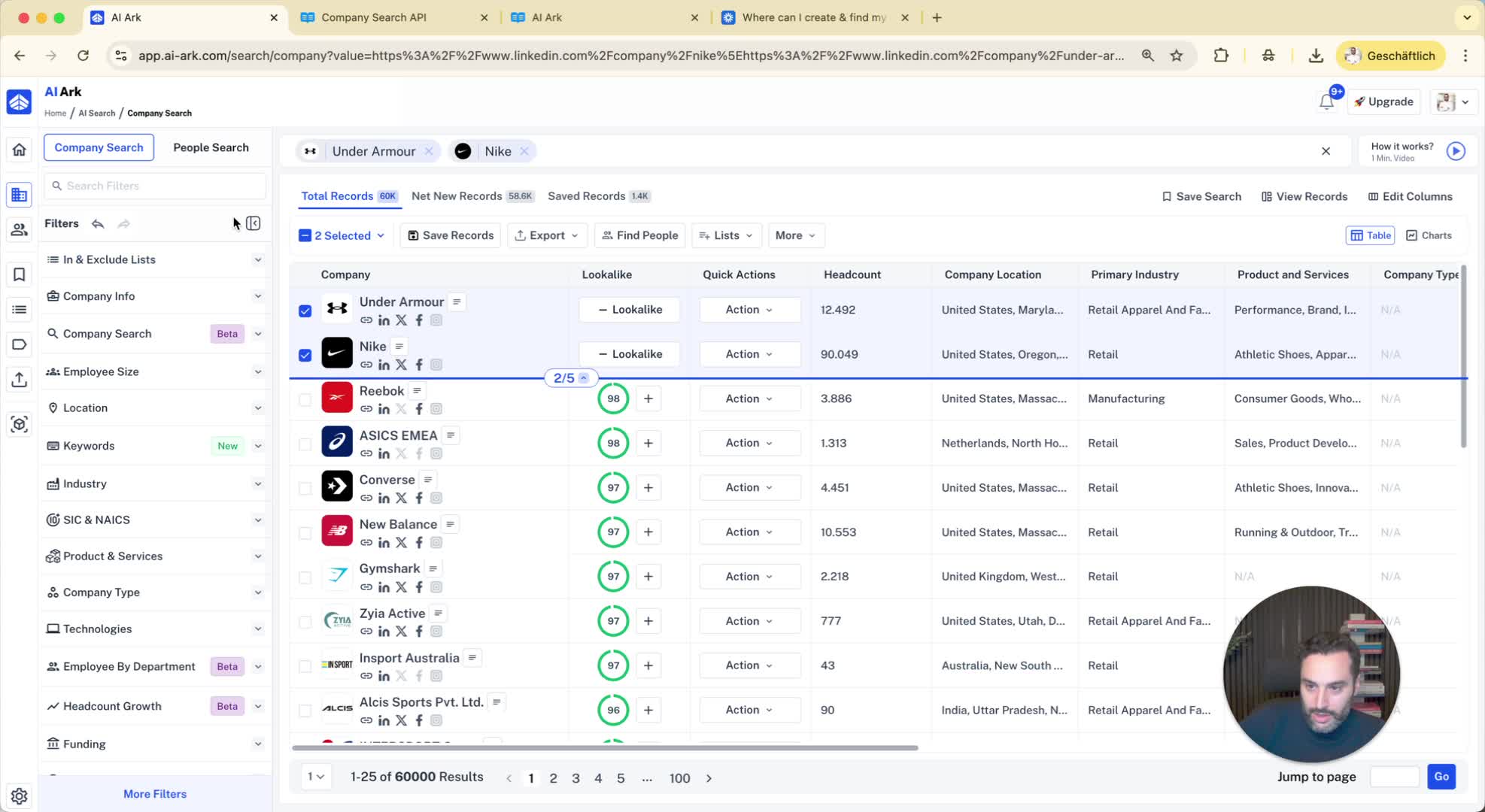
You can perform searches without a reference company.
Example: Search for companies in the US with 500-2000 employees.
7. Understanding Account and Contact Objects 3:15
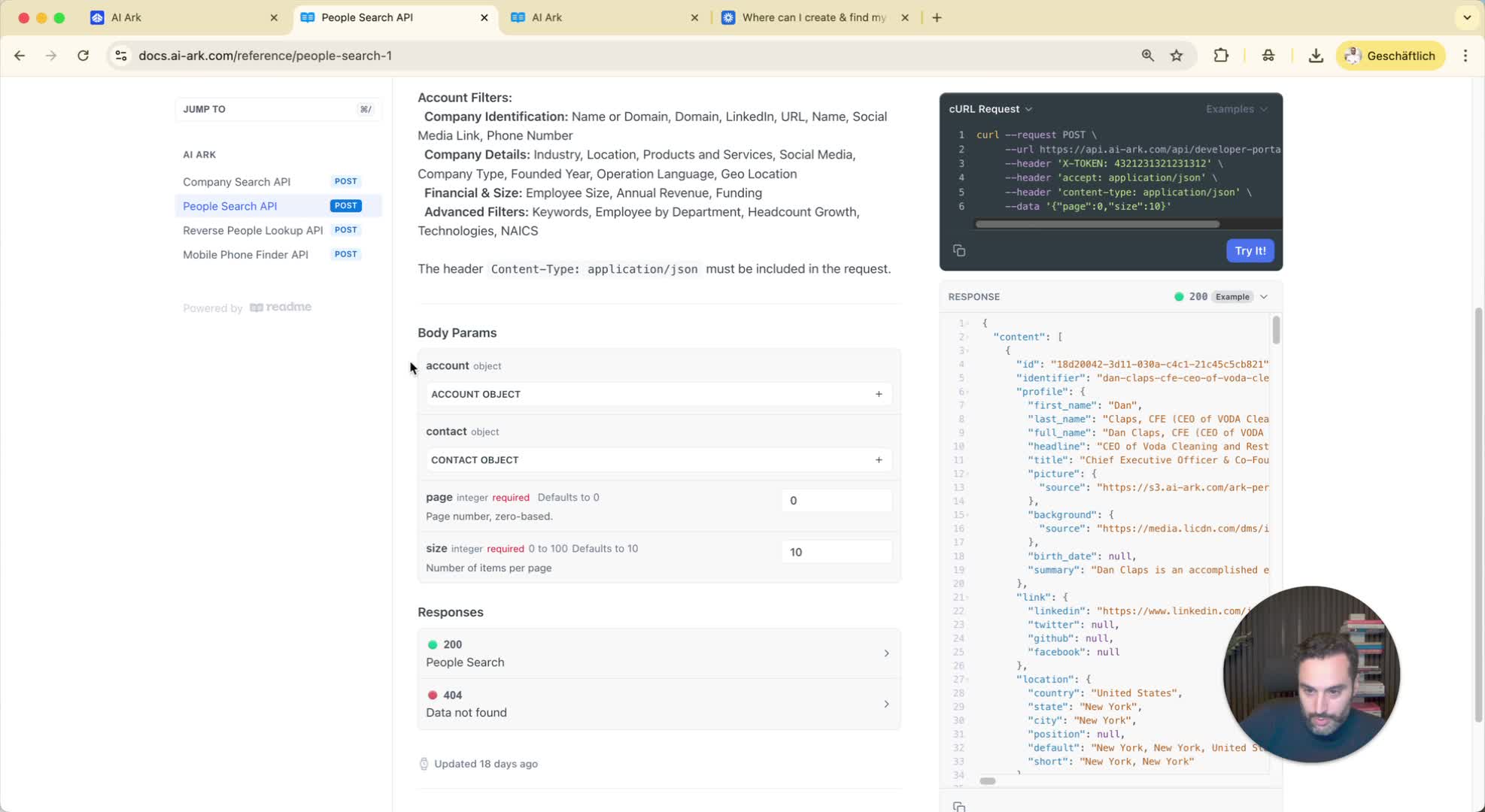
The People Search API has two objects:
Account Object: Information relevant to the company.
Contact Object: Information relevant to individuals.
8. Example Search for Marketing Managers 3:35
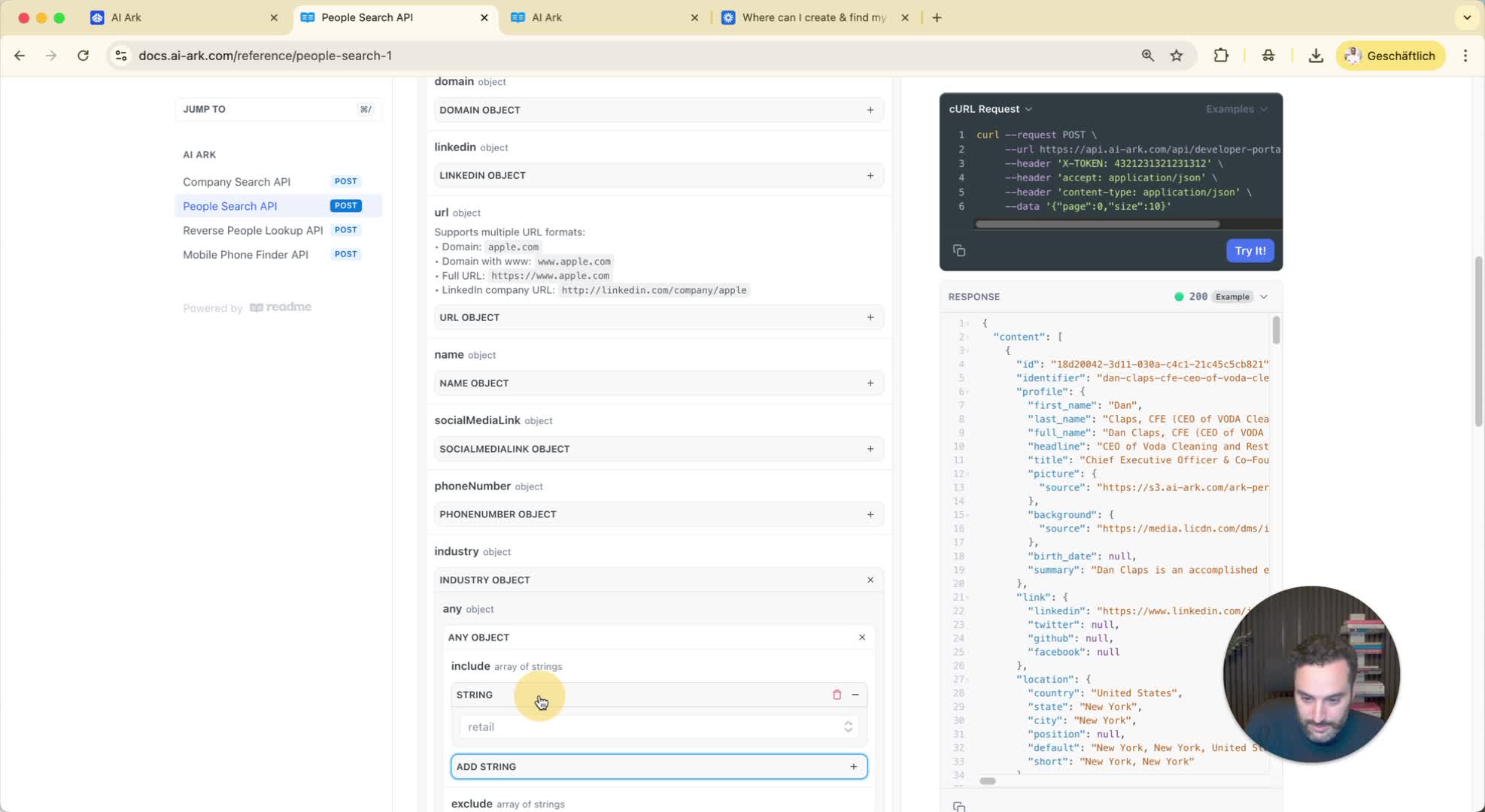
To find marketing managers:
Set account industry to 'Marketing'.
Set location to 'United States'.
Set employee size range (e.g., 500-2000).
Specify contact title (e.g., 'Marketing Manager').
Exclude individuals who are open to work.
9. Reviewing Search Results 5:04
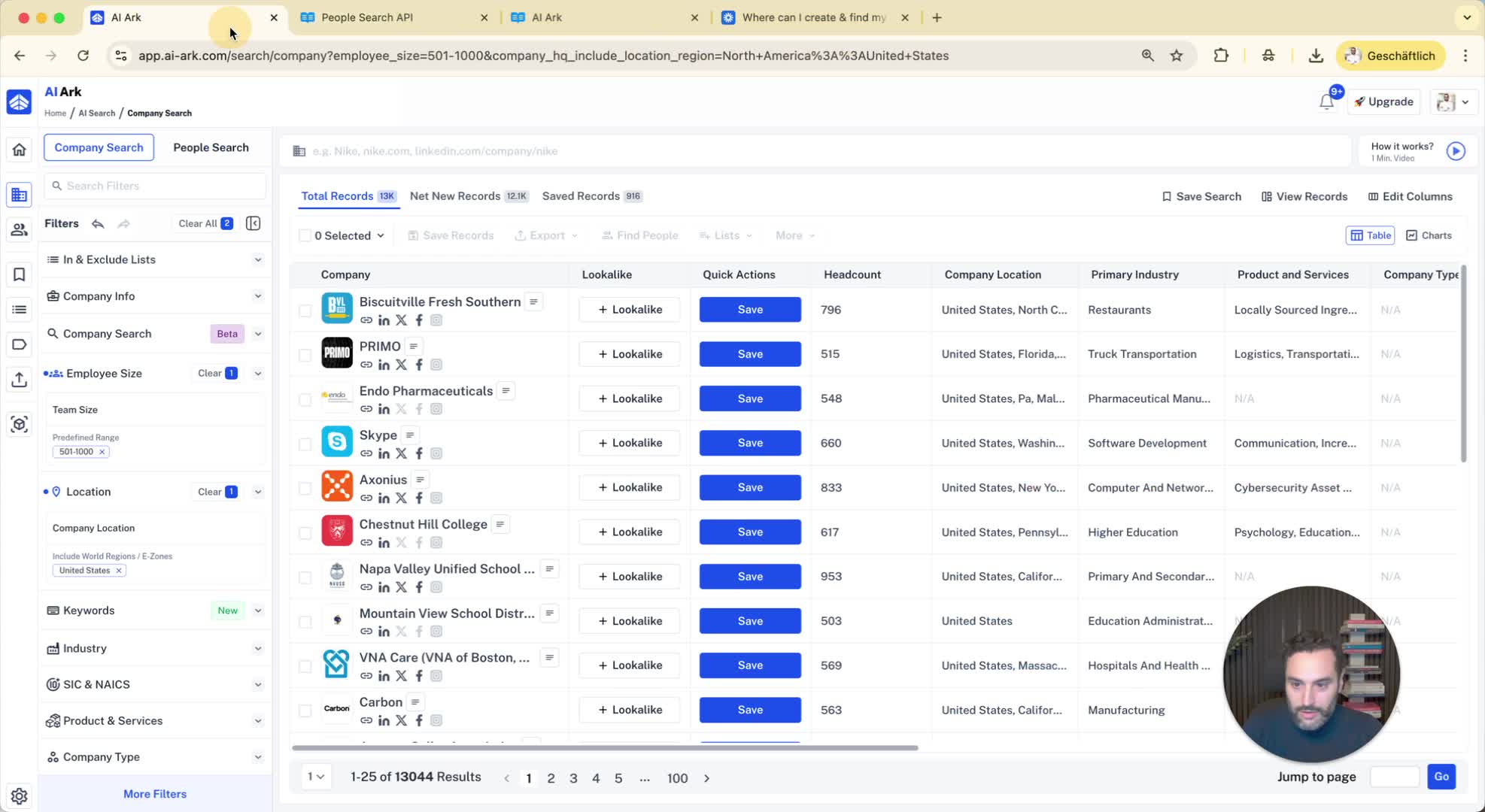
Review the results based on the specified criteria.
Example: Find marketing managers in New York working for US companies with more than 500 employees.
10. Using Mobile Finder and Reverse Lookup APIs 6:00
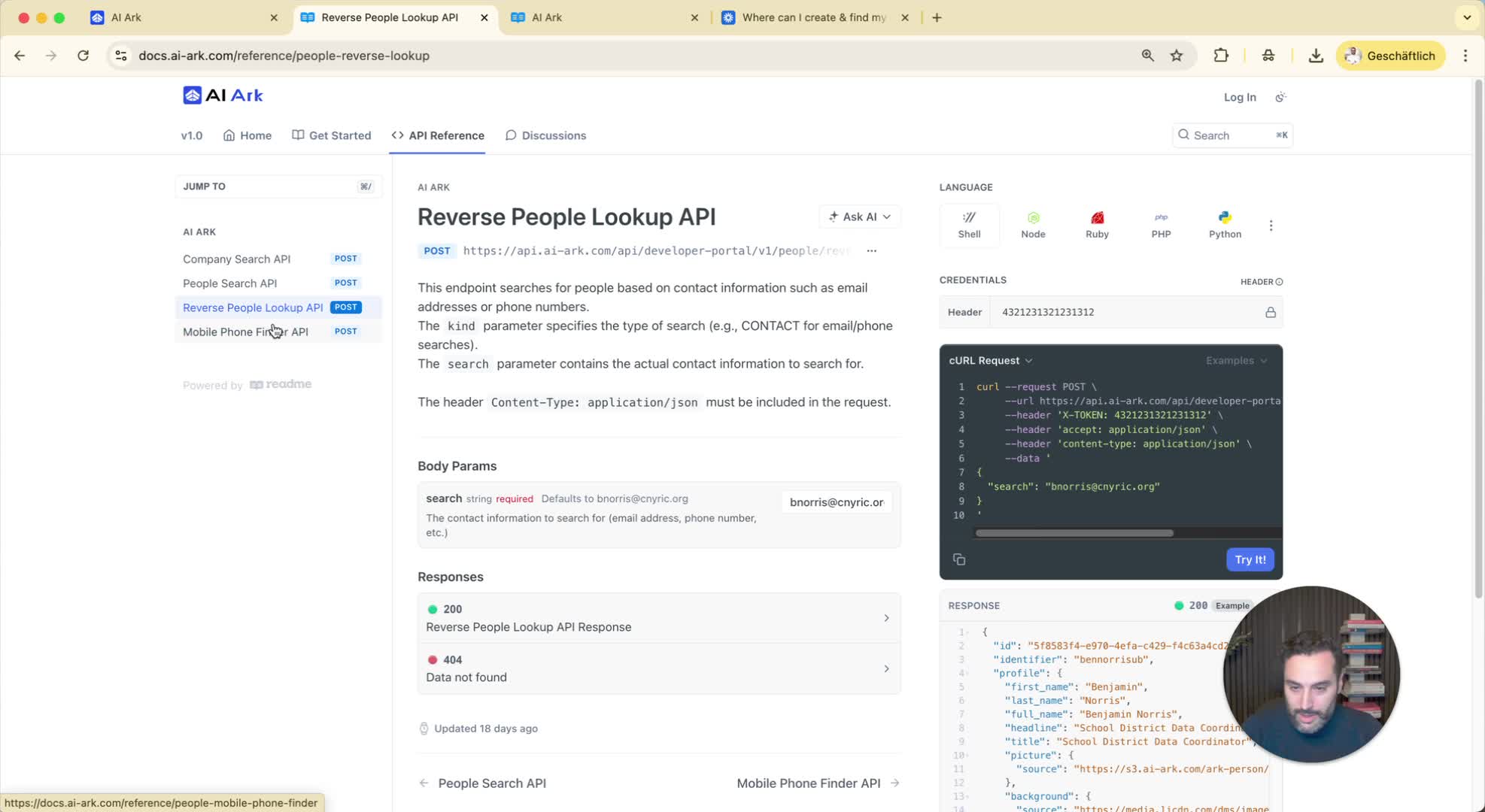
Mobile Finder API: Input LinkedIn URL or domain and full name to retrieve phone numbers.
Reverse Lookup API: Input an email to find the associated person.