Step 1: Access User Management 0:00
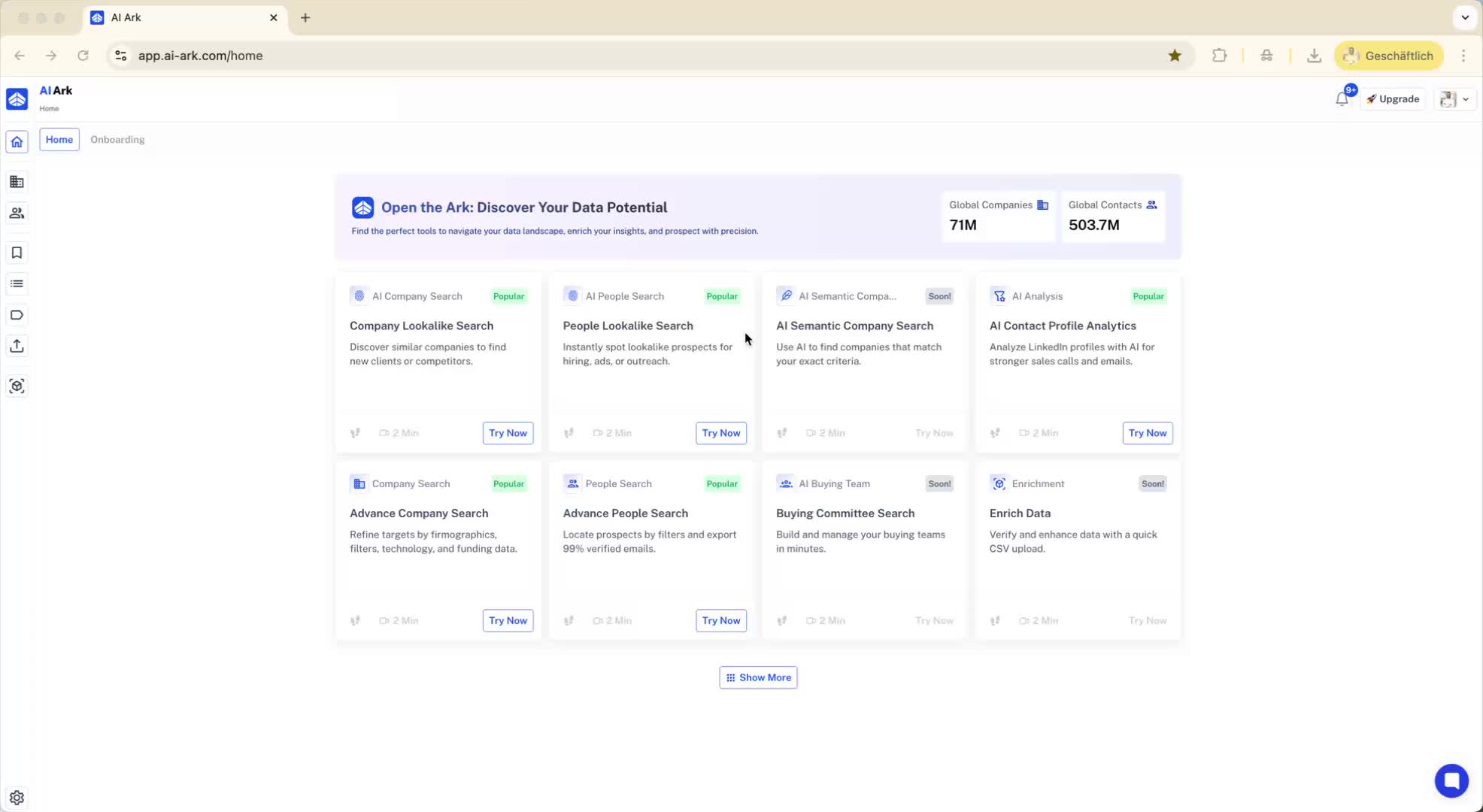
Go to the top right corner of the screen.
Click on your name or profile.
Select 'User Management' from the dropdown.
Step 2: Invite a New User 0:09
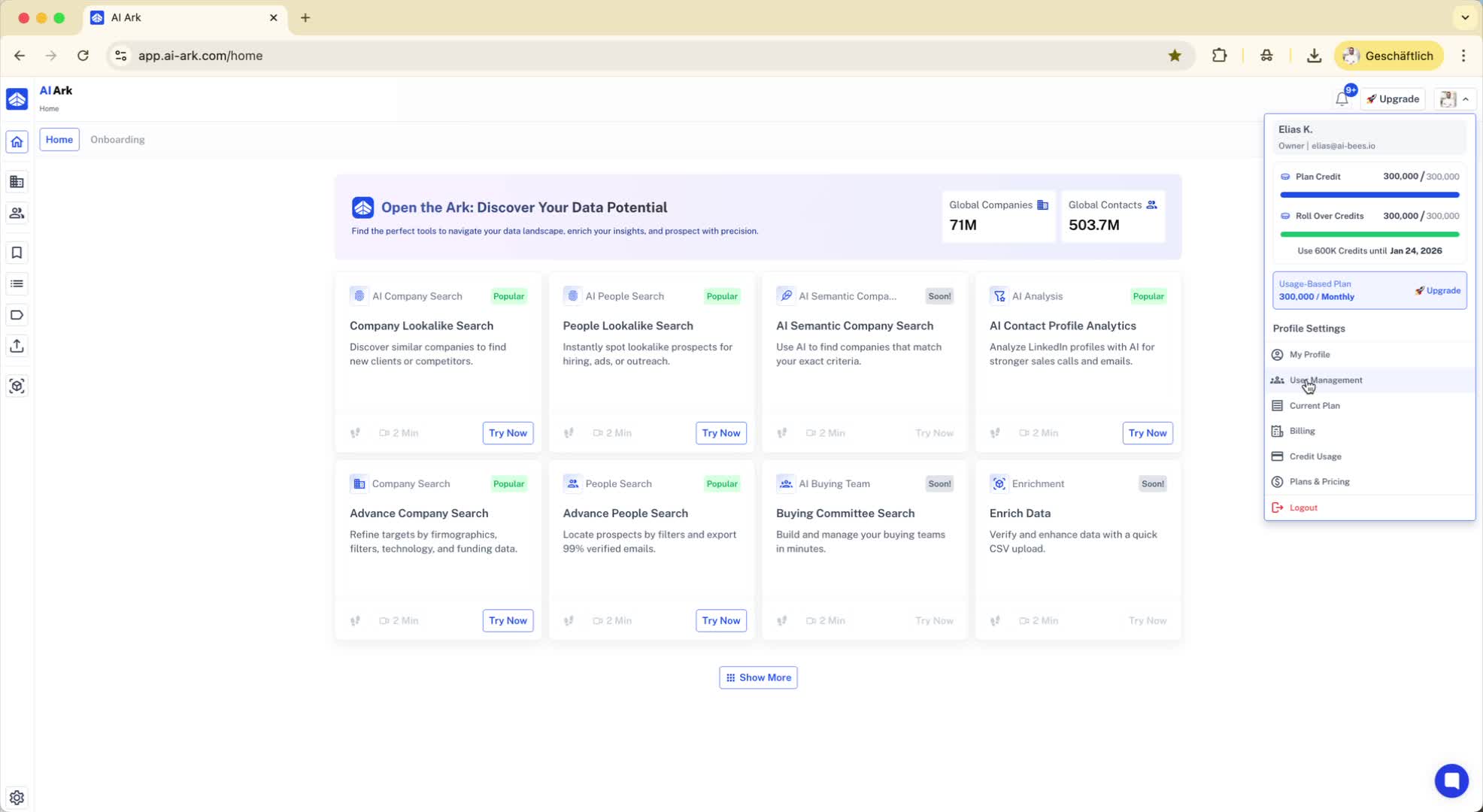
In the User Management section, click on 'Invite User'.
Fill in the required details:
First Name
Last Name
Role for the new user
Click 'Invite' to send the invitation.
Step 3: User Acceptance 0:20
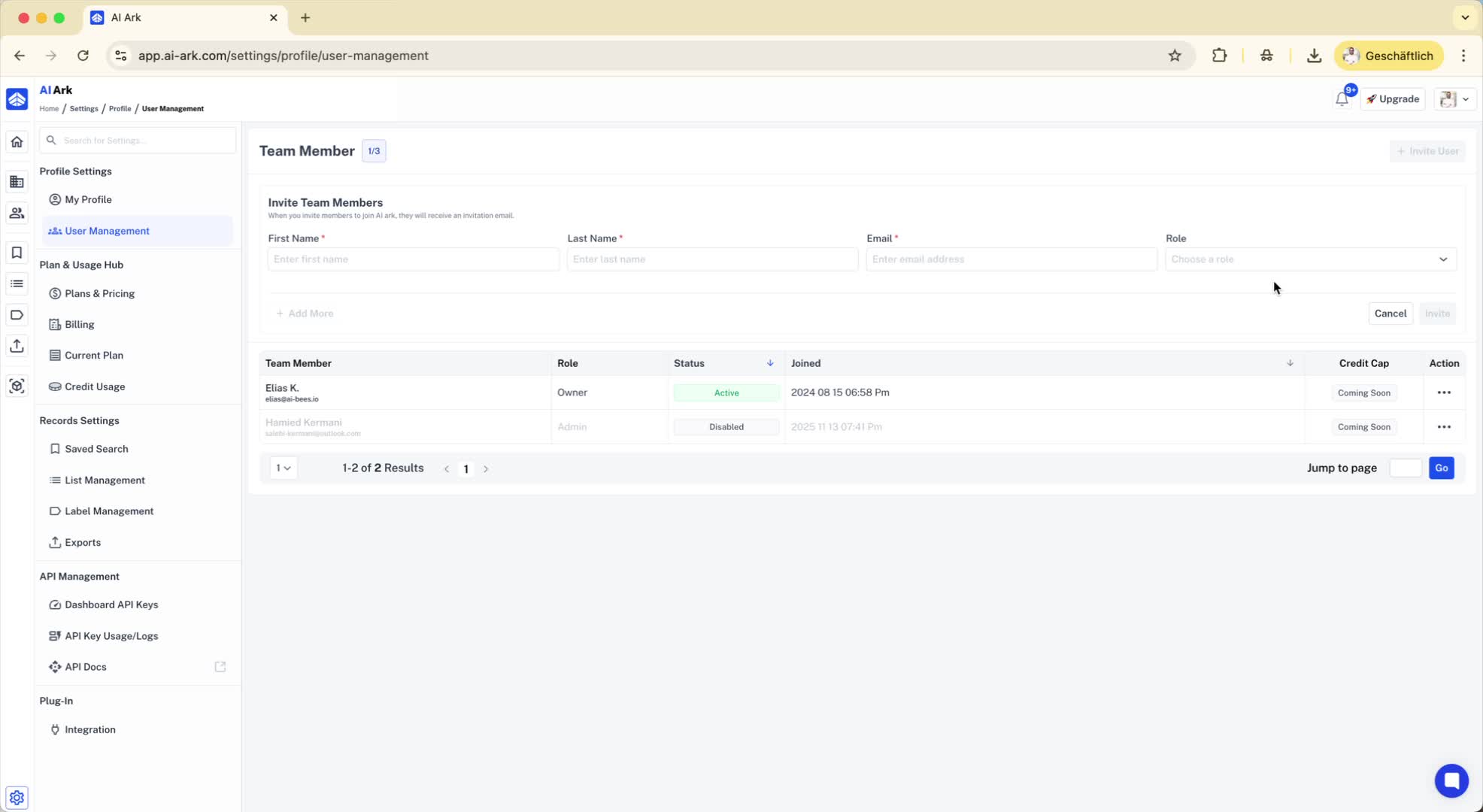
The invited user will receive an email.
They need to click on the link in the email to accept the invitation.
Once accepted, they can access the account under their own name.
Step 4: Setting Credit Caps (Upcoming Feature) 0:26
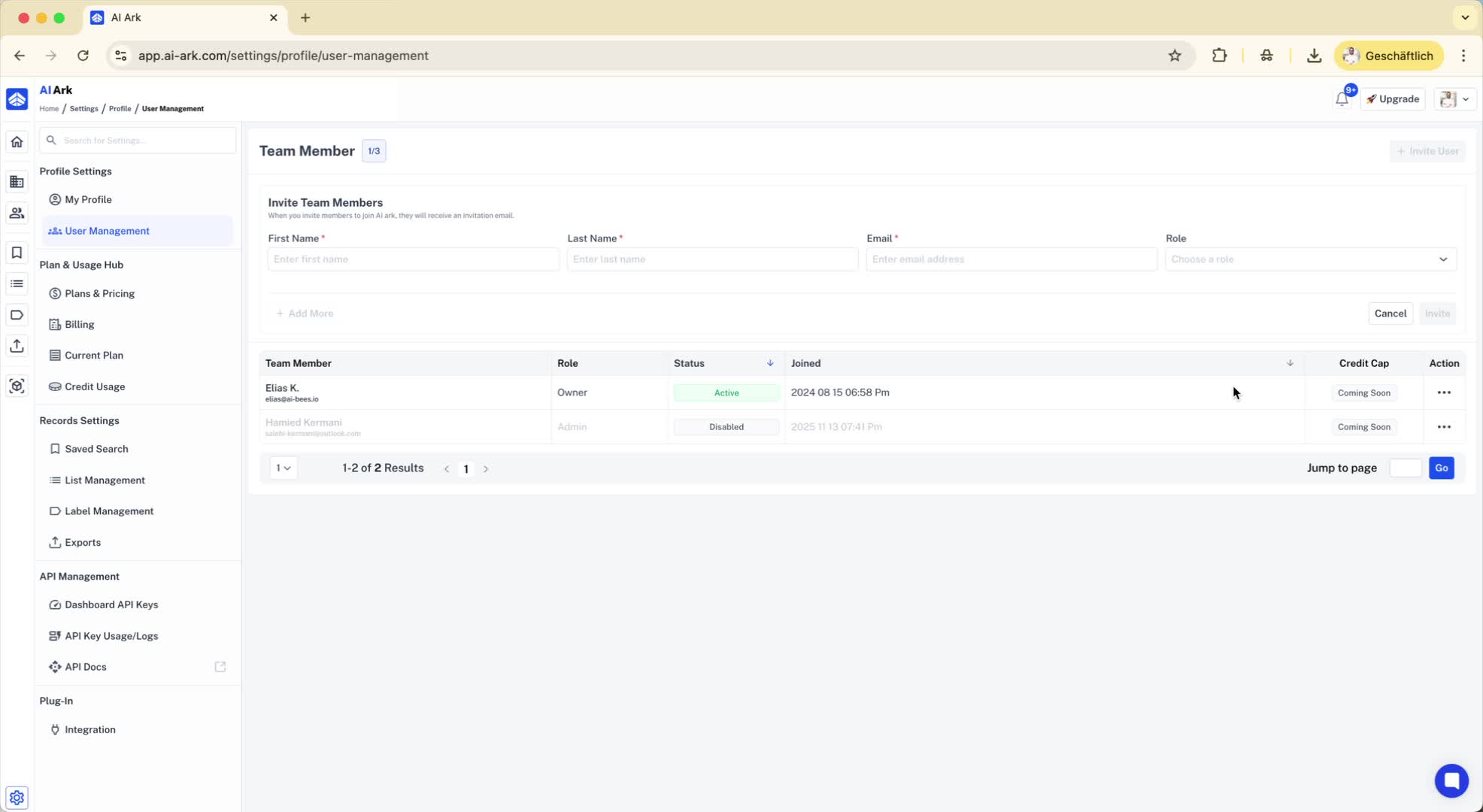
Note that a credit cap feature will be available soon.
This will allow you to allocate a certain number of credits to specific users.
Step 5: Creating and Managing Lists 0:35
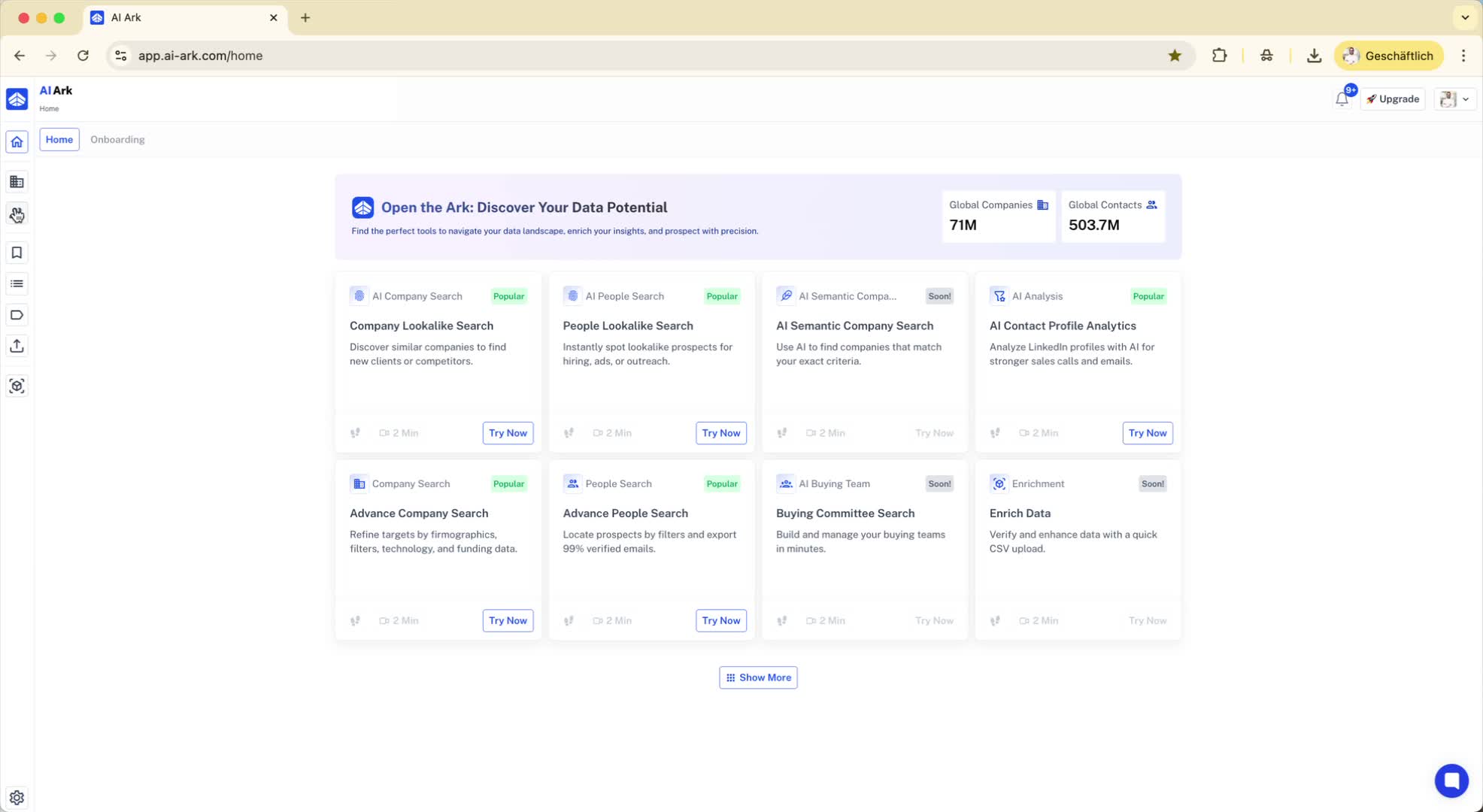
Perform a search (e.g., for 'Sales Managers').
Create a list (e.g., 'Test List').
Decide on the visibility of the list:
Private (only for you)
Shared (visible to other users in your account and workspace)