Step 1: Access Saved Searches or Exports 0:00
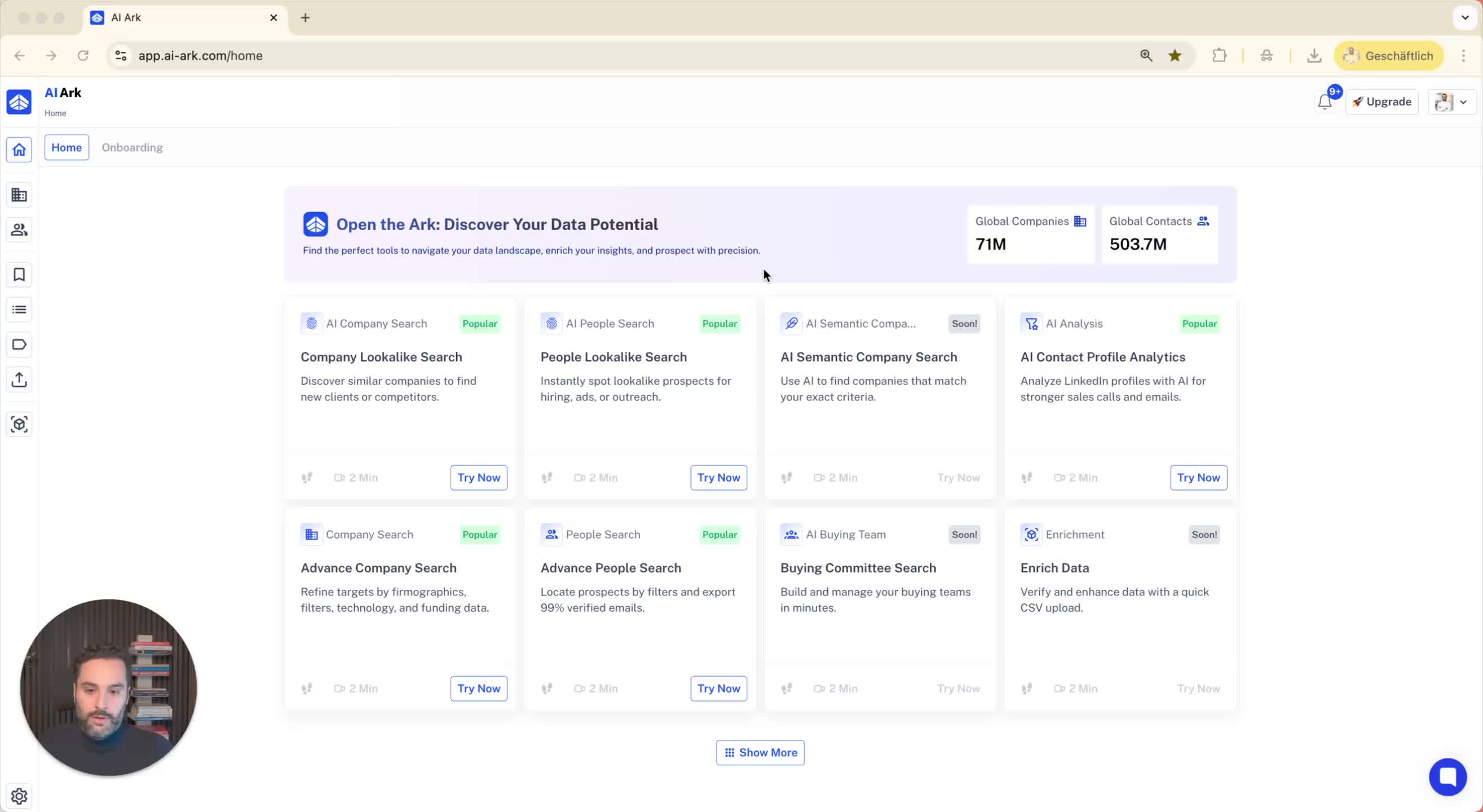
To view past filters, you can either:
Go to your saved searches.
Go to the exports and click on searches.
Step 2: Perform a Search 0:09
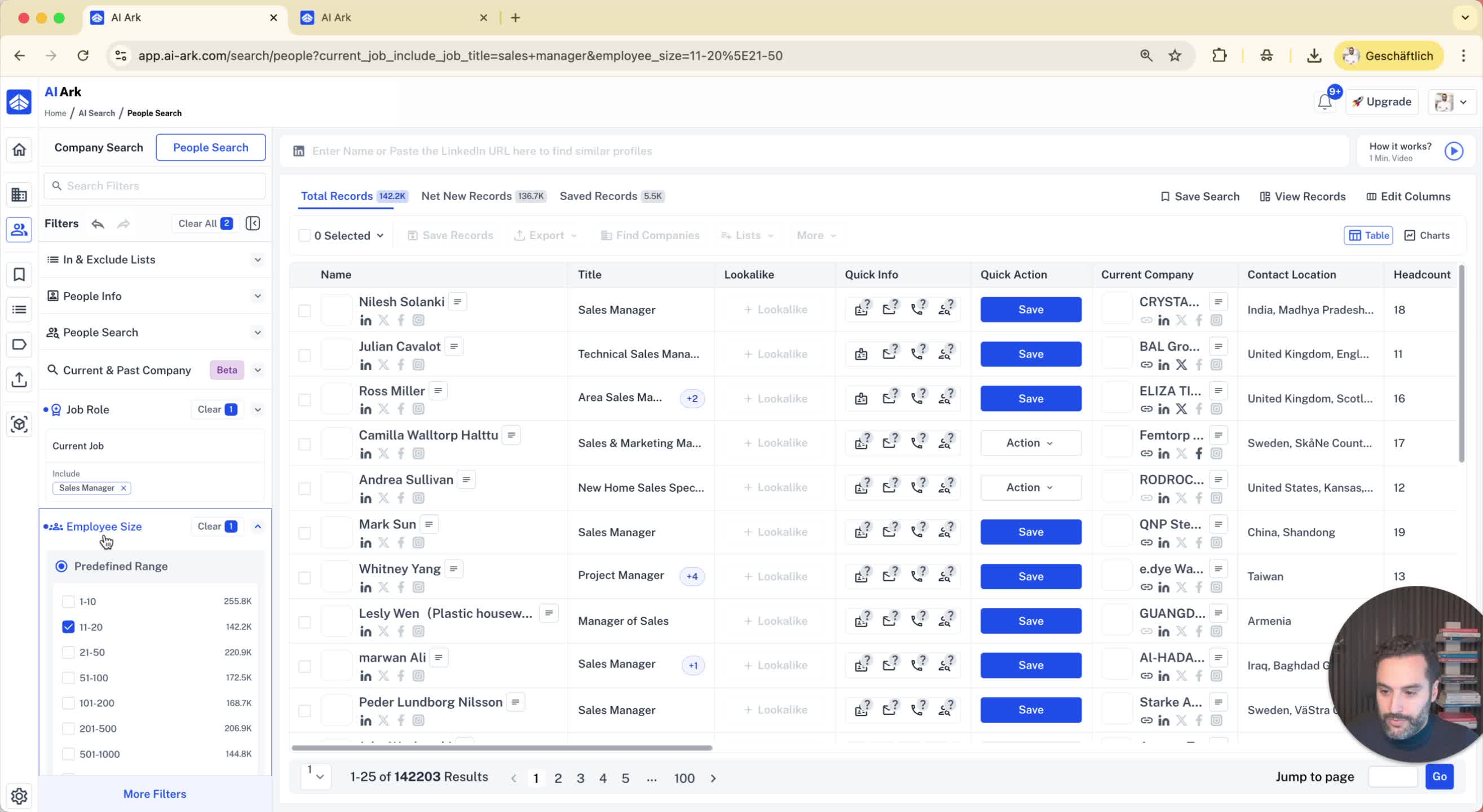
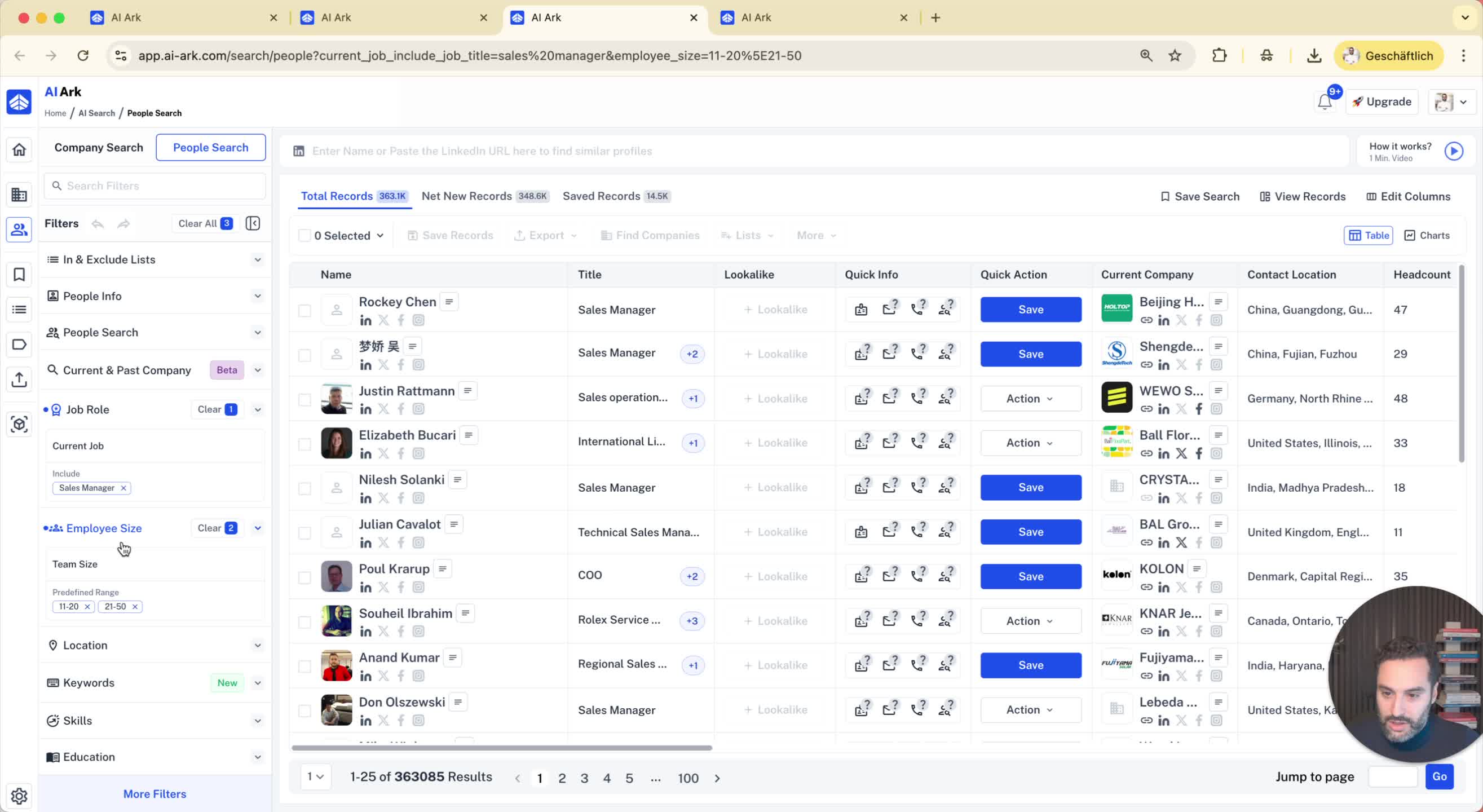
Conduct a search (people or company).
Select your desired filters.
Step 3: Save Your Search 0:18
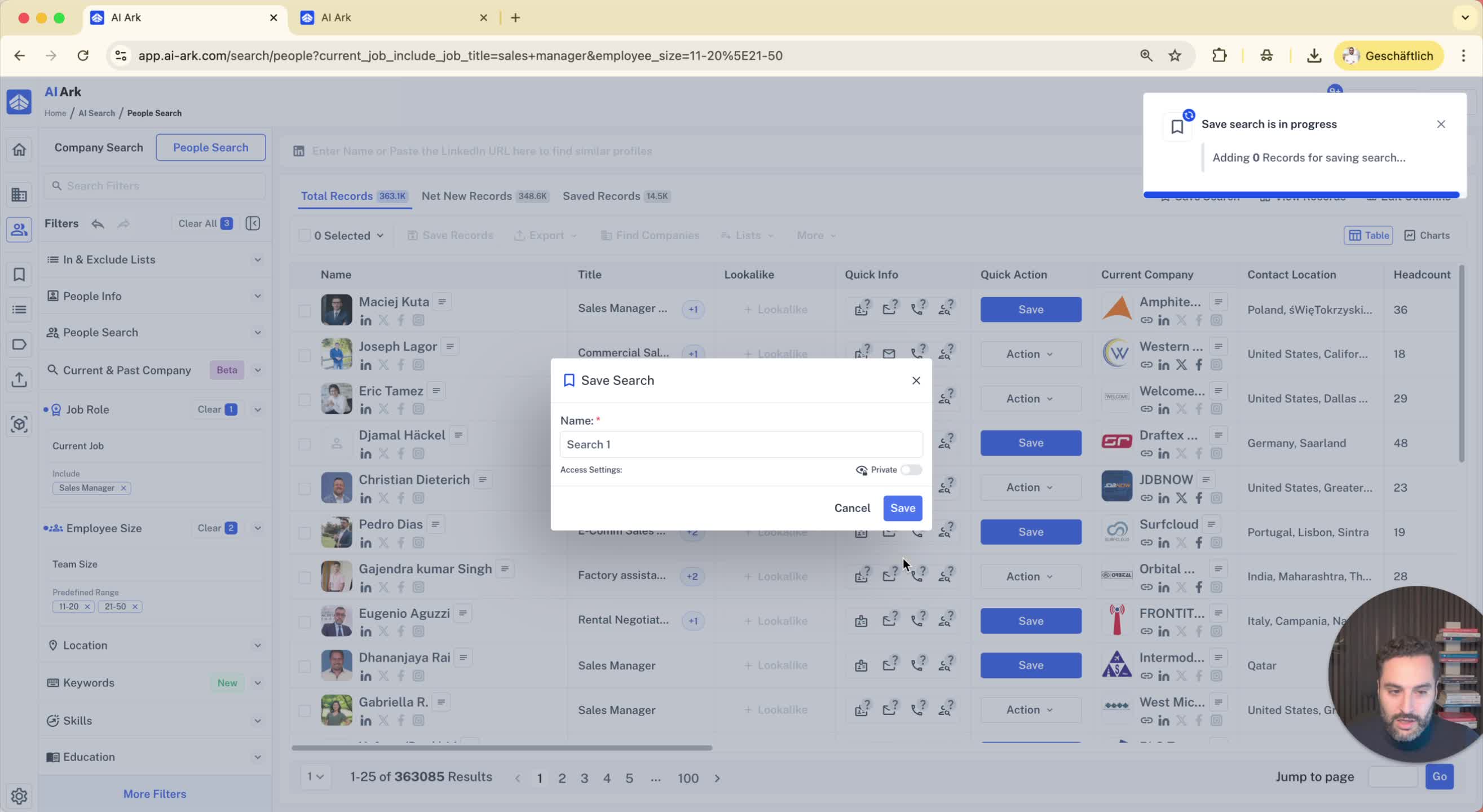
Click on 'Save Search'.
Name your search (e.g., 'Search One').
Choose to save it for yourself or your entire workspace.
Click 'Save'.
Step 4: View Your Saved Search 0:30
Navigate to the left side to see your saved search.
Refresh if necessary to see the updated list.
Step 5: Check Filters Used in Saved Search 0:38
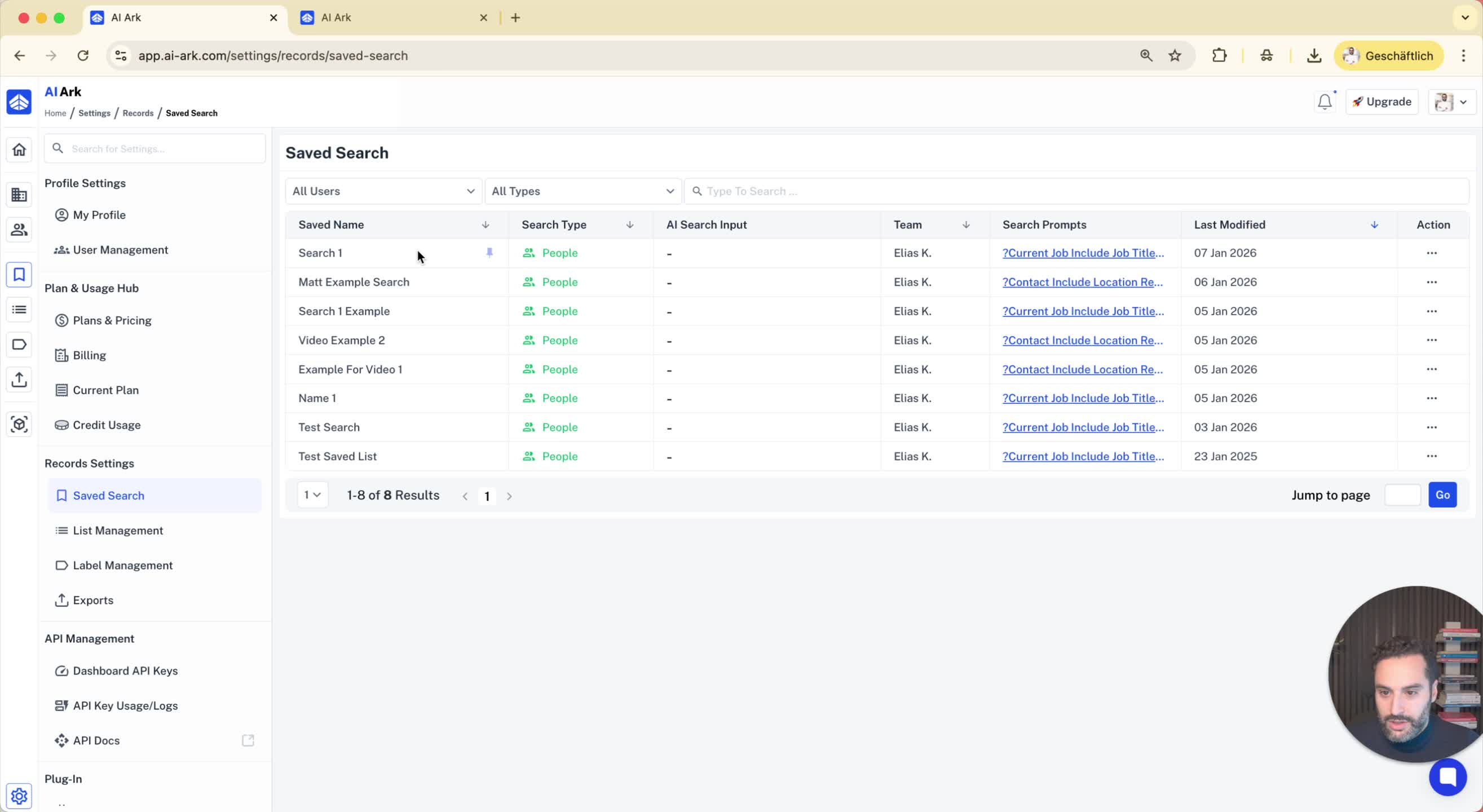
Click on your saved search to view it.
On the left side, see all the filters that were used.
Step 6: Export a Search 0:49
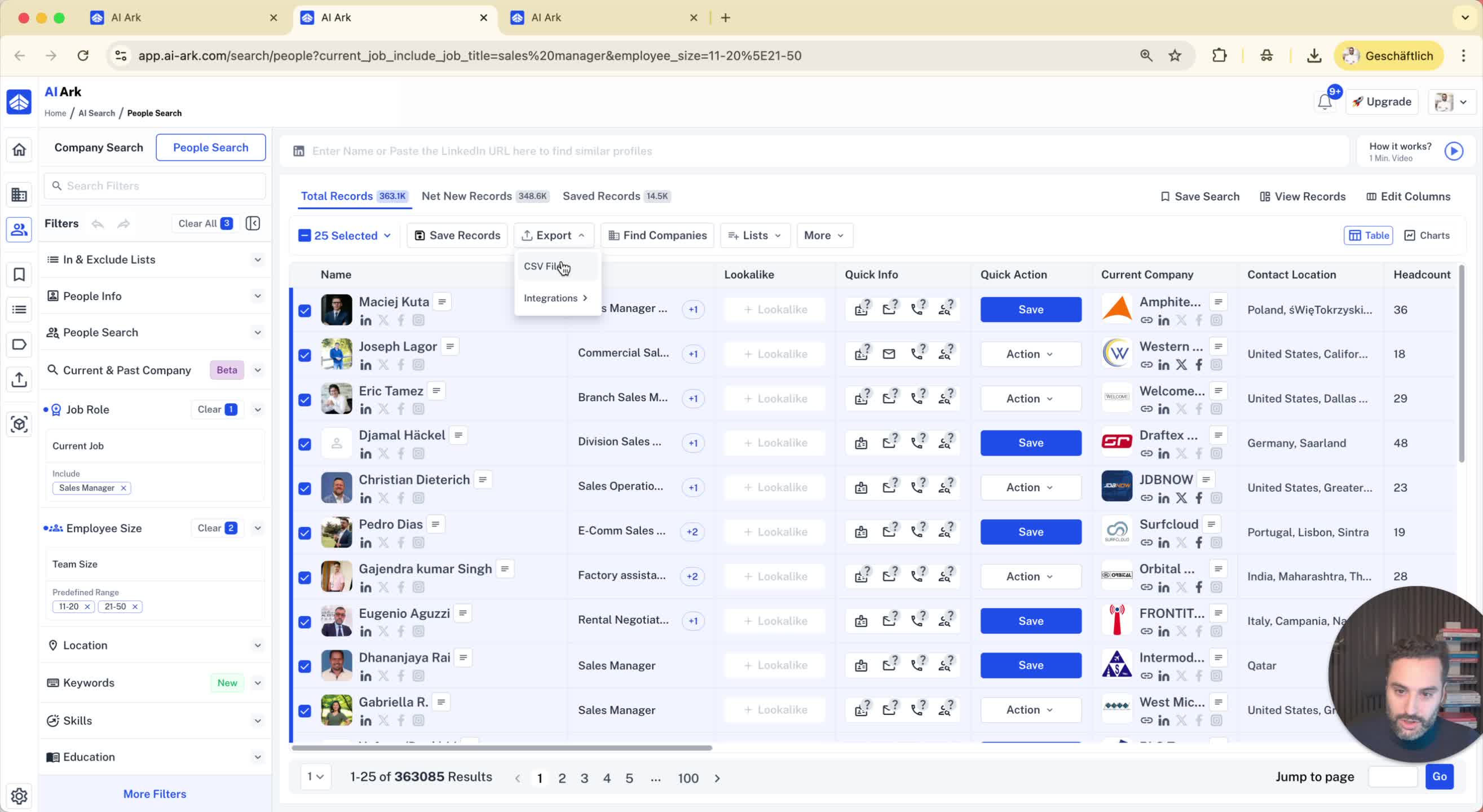
If you prefer not to save a search, you can export it instead.
Export the search without emails and mobile phones for quicker processing.
Step 7: Access Exported Search 0:58
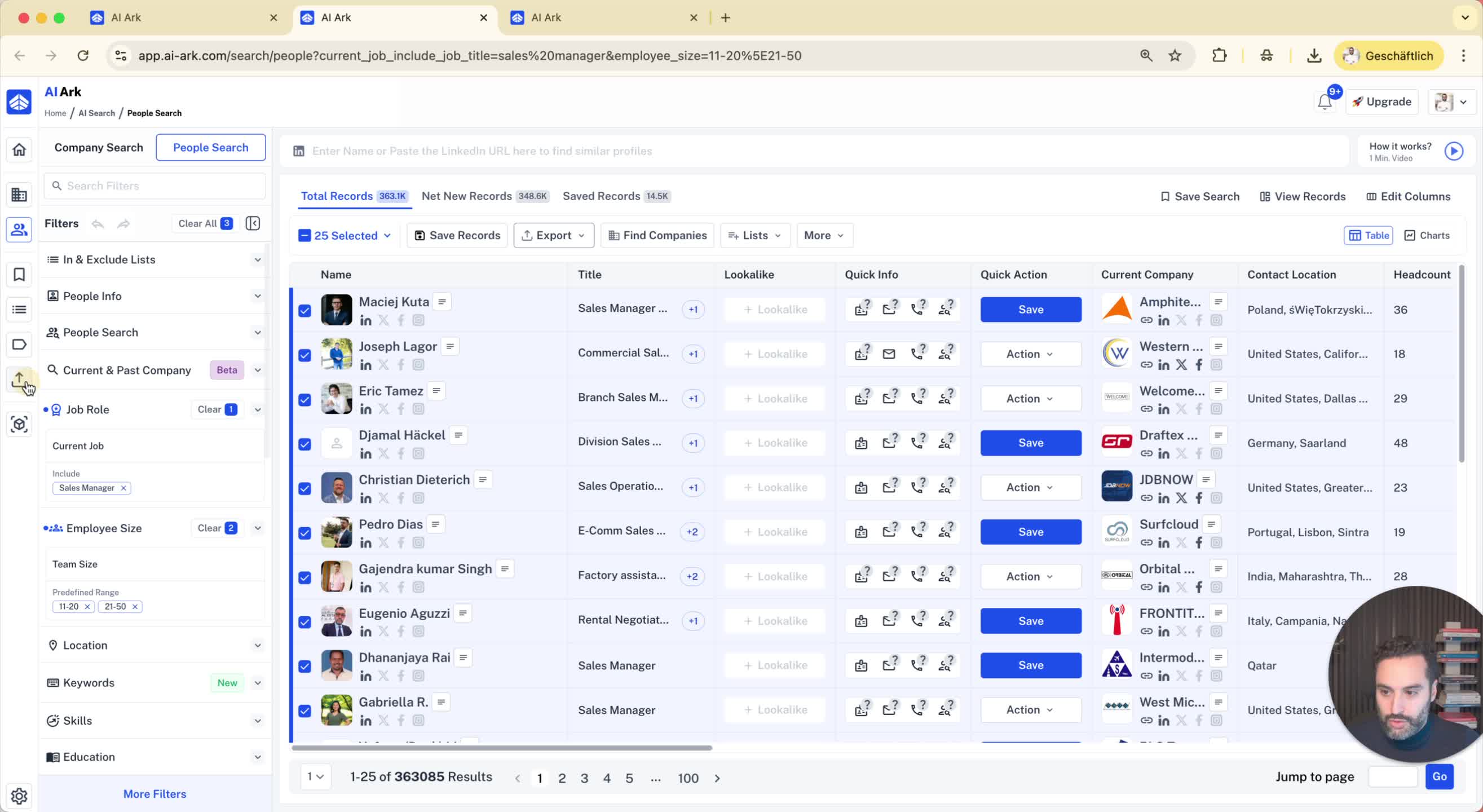
Go to the export bar to find your exported search.
Click on the search link to view it.
Step 8: View Filters in Exported Search 1:03
On the left side, you can see all the filters that were used in the exported search.
Conclusion 1:08
This process allows you to easily see the filtering of previous searches.