Step 1: Start Your Search 0:00
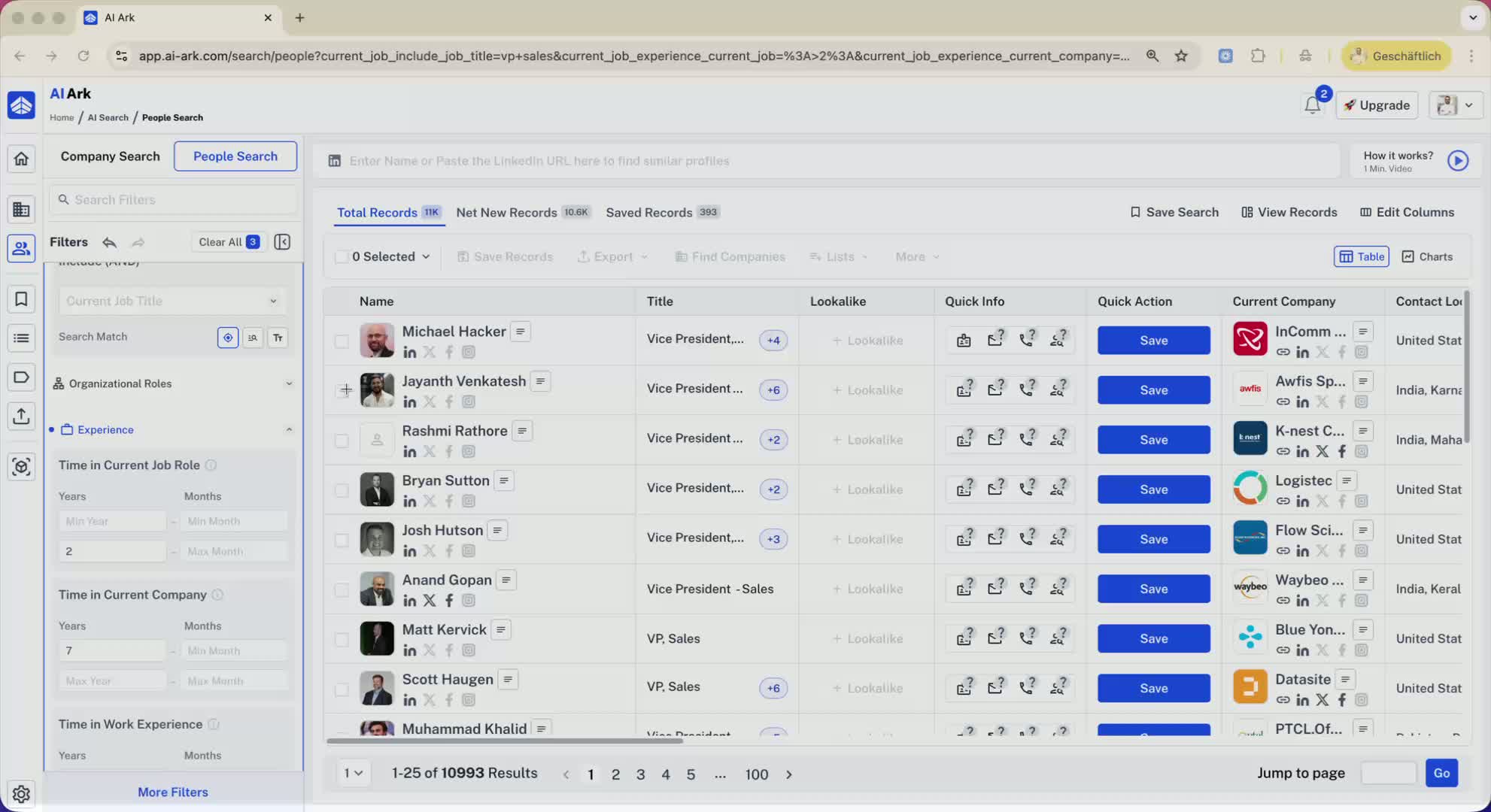
Begin by conducting a search to generate a list of results.
Example: You may have 11,000 results from your search.
Step 2: Set Maximum People per Company 0:07
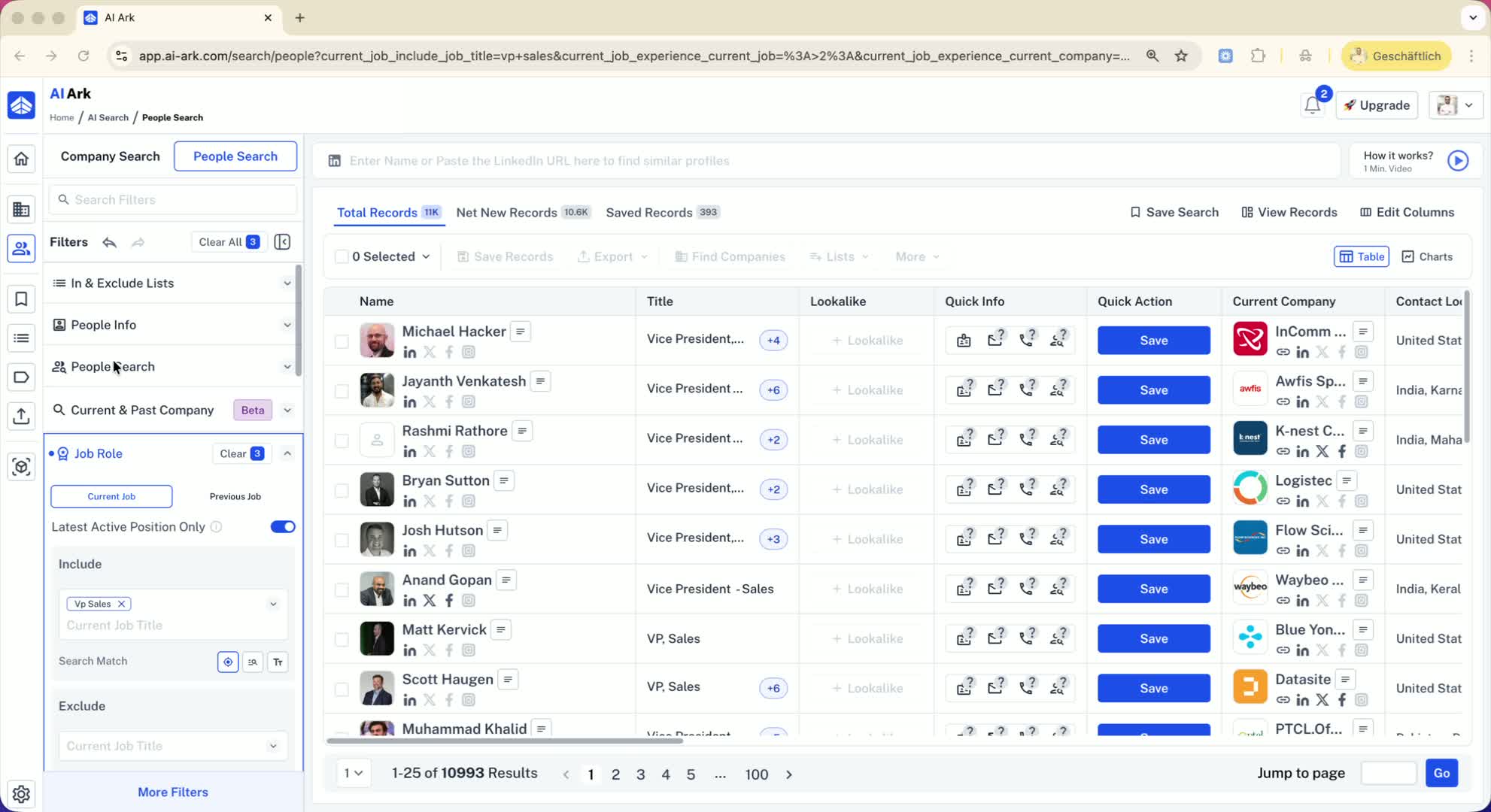
Decide how many people you want to export from each company.
Click on the option for 'max people per company'.
Example: Select '2' to limit the export to two people per company.
Step 3: Apply Your Selection 0:29
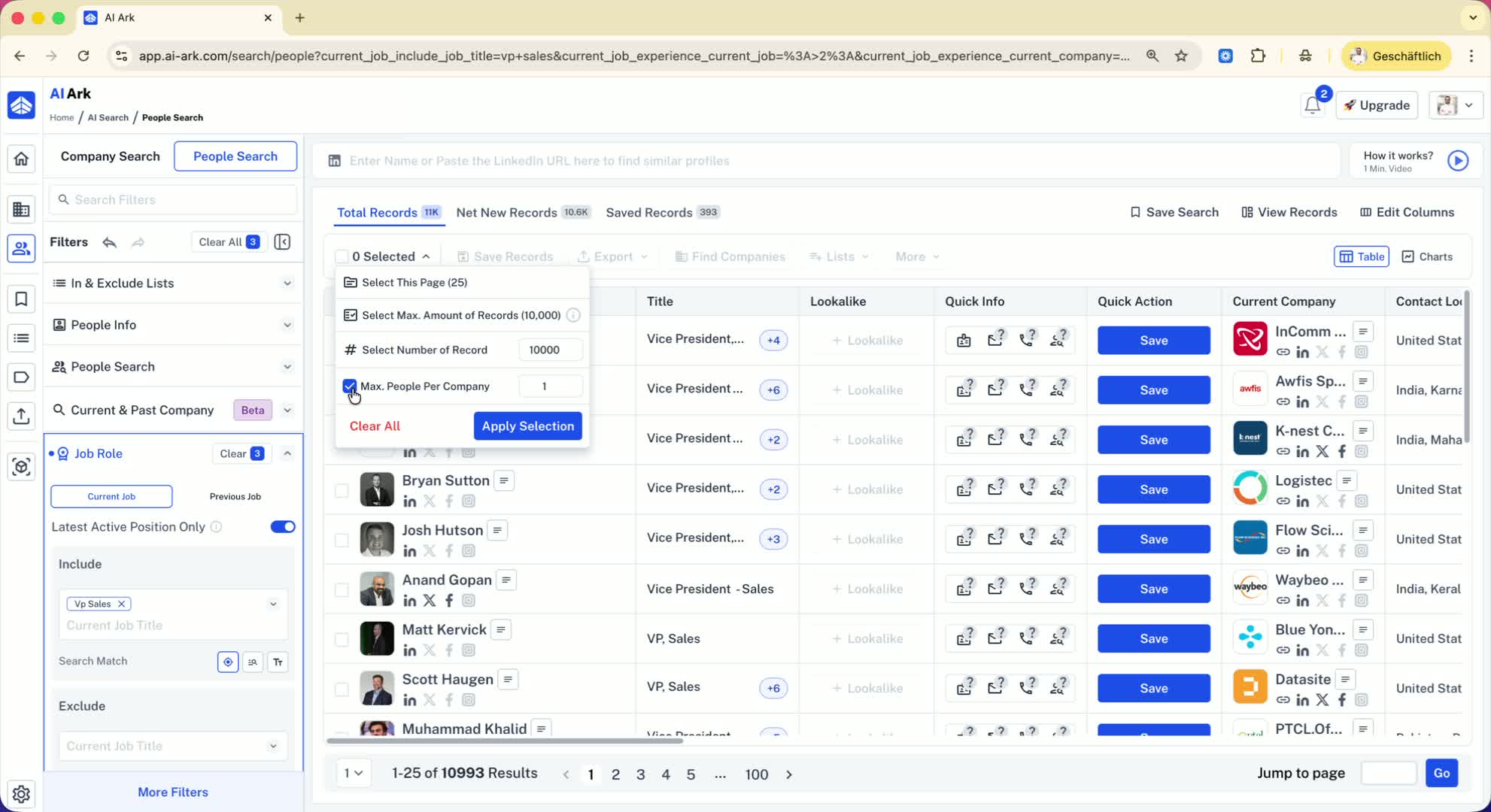
Click on 'apply selection'.
The system will filter the results based on your selection.
Example: The filtered list may now show 7,969 people, ensuring no more than two per company.
Step 4: Clear Filters and Search for Specific Companies 0:52
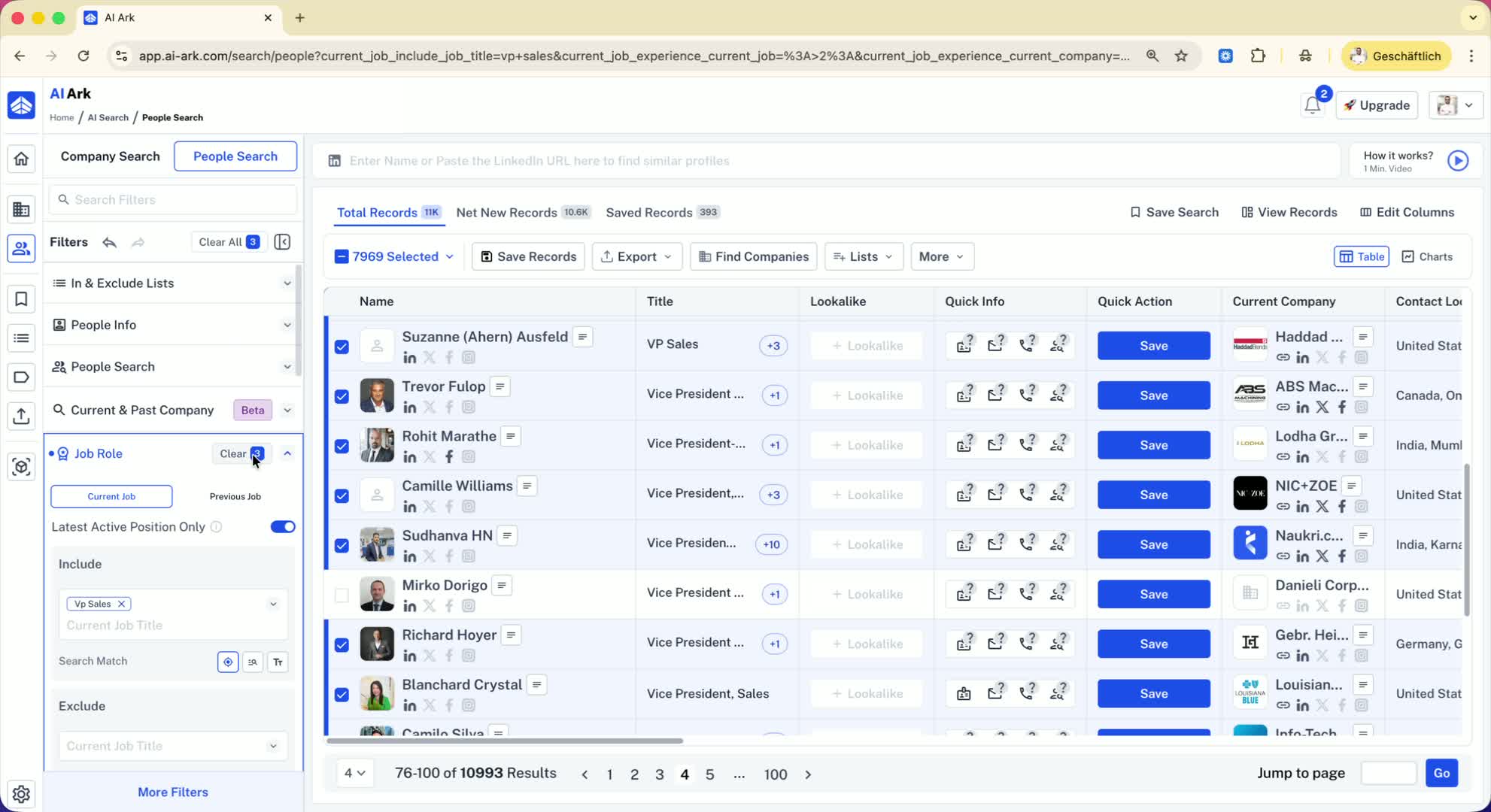
If you want to focus on a specific company, clear all filters.
Add a specific domain (e.g., 'Nike.com') to filter employees from that company.
Step 5: Reapply Maximum People Filter 1:02
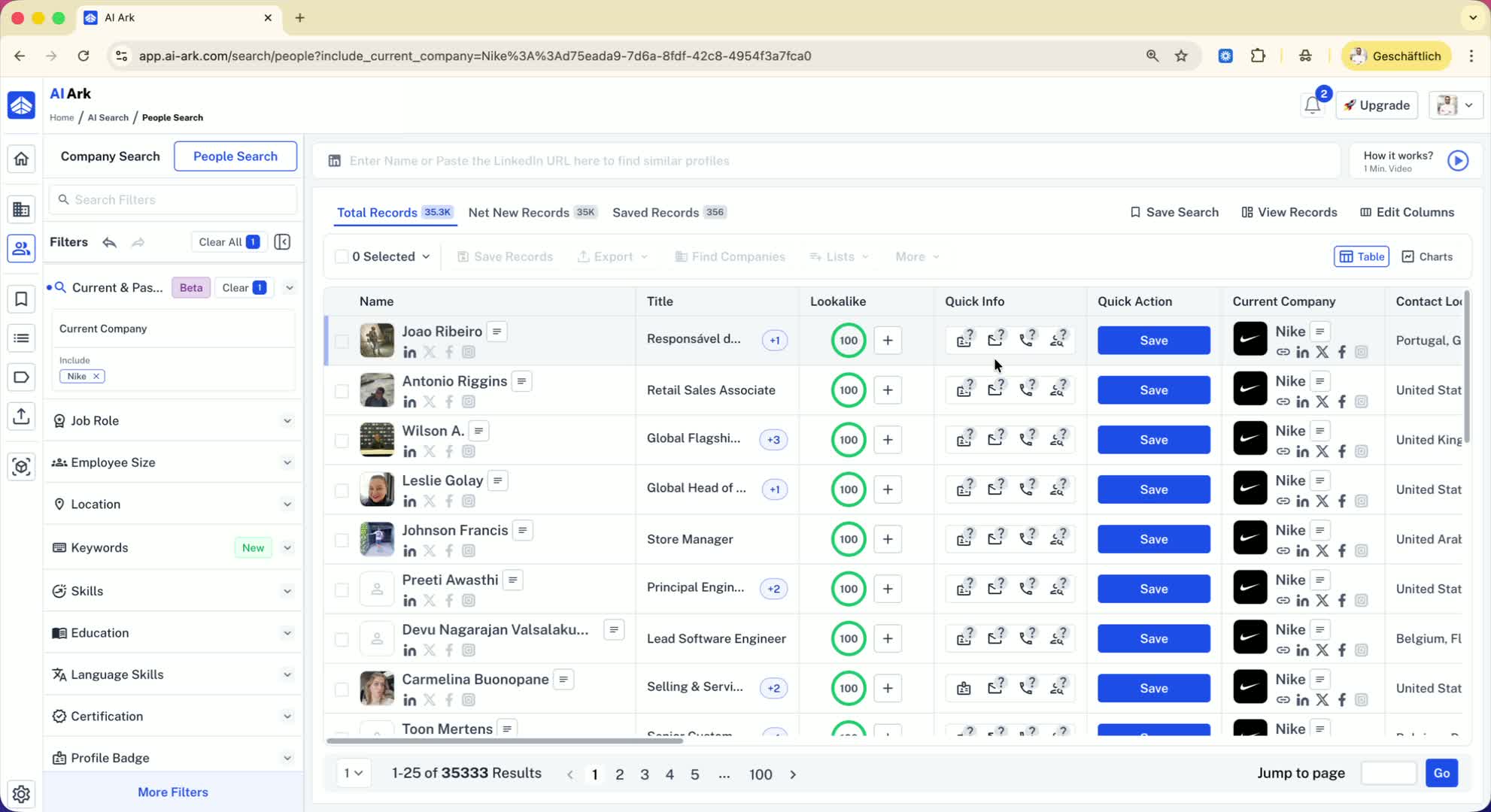
Set the maximum number of people per company again (e.g., '1').
The system should now show only one person from the specified company.
Step 6: Check for Previously Exported Records 1:20
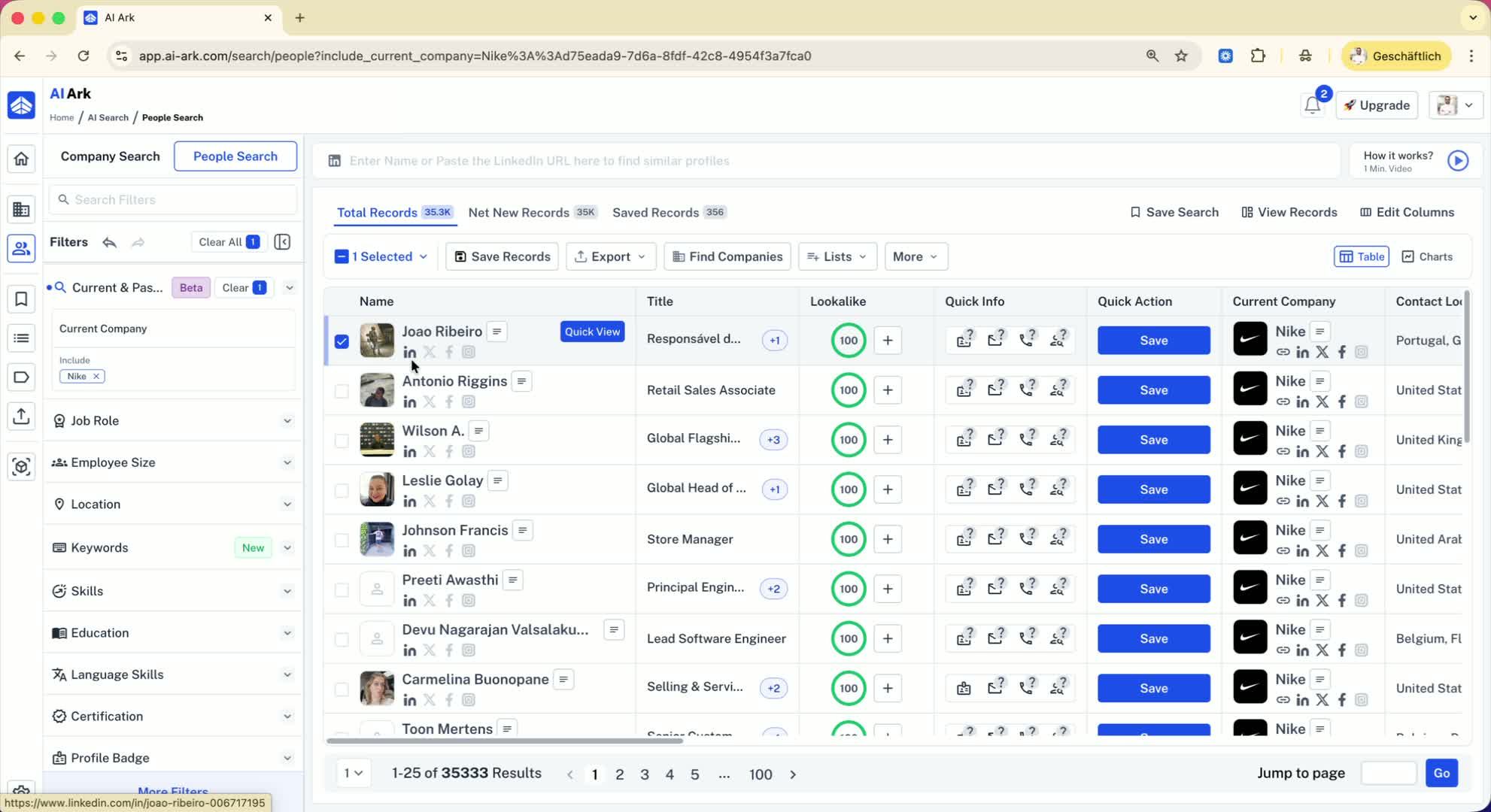
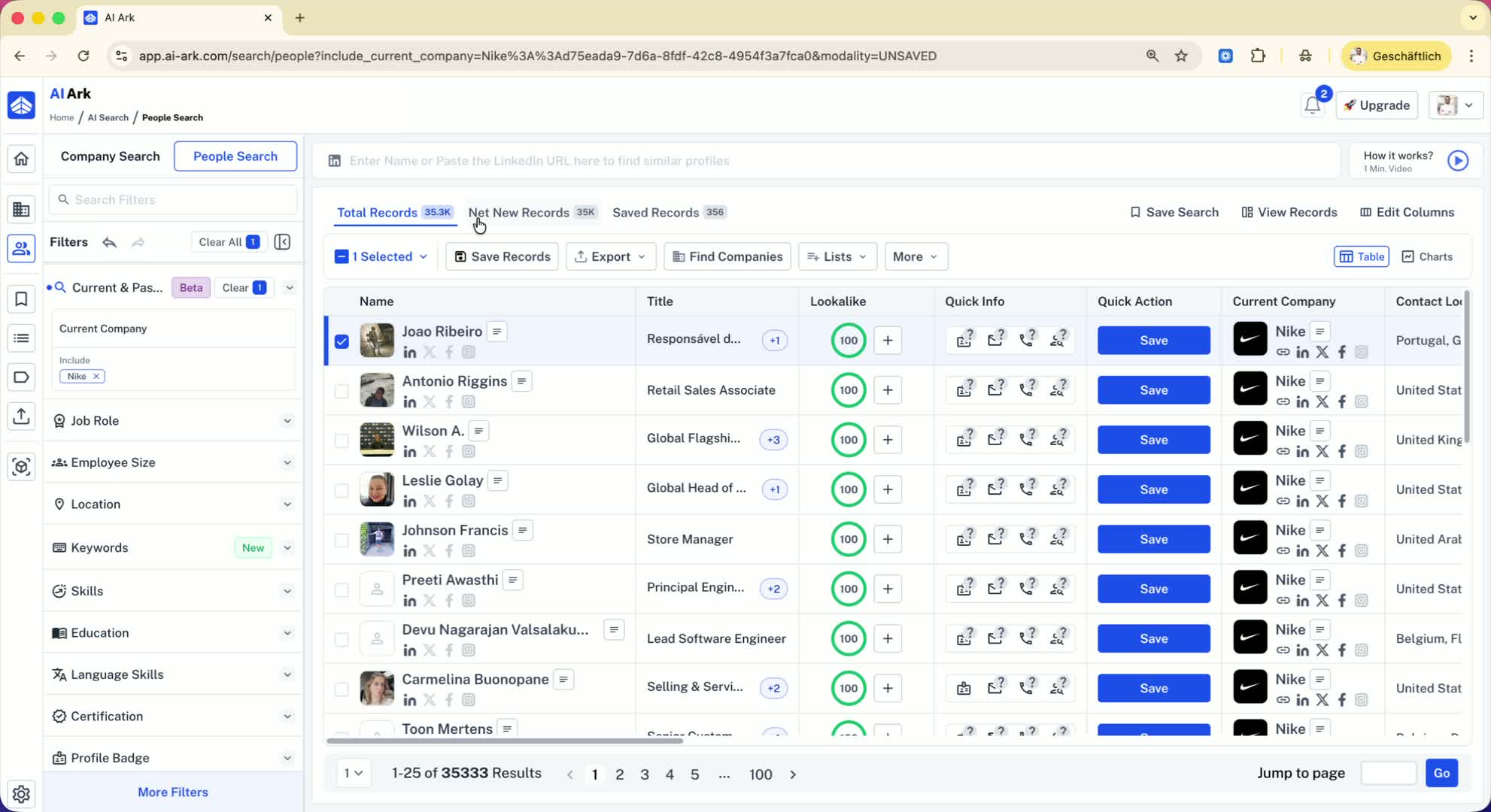
To avoid exporting the same person again, check your past exports.
Navigate to 'net new records' to see records that have not been exported before.
Step 7: Filter by New Records and Maximum People 1:30
In the 'net new records', select the total number of records (e.g., '10,000').
Set the maximum people per company (e.g., '2') to ensure no duplicates.
Step 8: Finalize Your Export 2:05
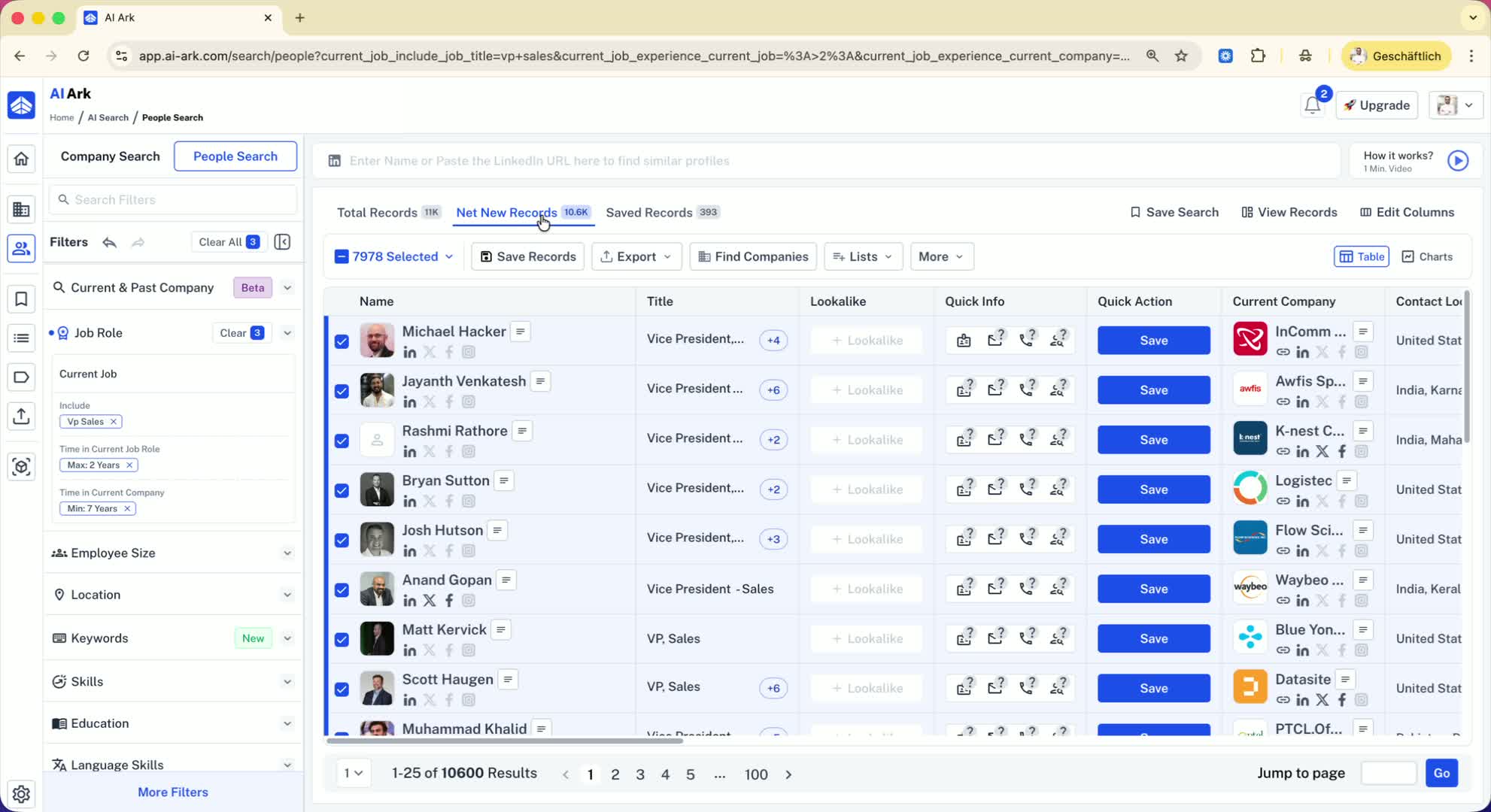
Review your selections to ensure you are not exporting duplicates.
Proceed with your export knowing you have filtered correctly.